TL;DR
Without root, there is currently no local Linux environment on the Alexa Tablet 12 Pro. Termux aborts with "Unable to install bootstrap" because the tablet runs in Headless System User Mode and the user is user 10. The Android 16 Linux terminal does start a Debian VM, but its CPU never executes guest code under Amazon's GenieZone hypervisor.
Contents (18 sections)
- The result in brief
- The device
- How to detect Headless System User Mode
- Termux: “Unable to install bootstrap”
- Why Termux fails
- Attempt: install and start Termux as user 0
- Side note: the 16 KB warning
- The Android 16 Linux terminal
- Checking the requirements
- Unlocking it
- The error: an unrecoverable error
- What the logs show
- The decisive log: watchdog after 60 seconds
- Assessment
- Cleaning up
- Alternatives
- Command reference
- Conclusion
The result in brief
Without root, there is currently no local Linux environment on the Alexa Tablet 12 Pro. Both obvious approaches fail, for different reasons:
| Approach | Result | Cause |
|---|---|---|
| Termux (Play Store and GitHub) | Does not start: “Unable to install bootstrap”. Installing it for user 0 does not help either. | Headless System User Mode: Termux only runs as user 0, and user 0 has no UI. |
| Android 16 Linux terminal (AVF, Debian VM) | Can be unlocked, the VM starts, but Debian never boots: unrecoverable error (onVmError). |
The guest CPU executes no instructions under Amazon’s GenieZone hypervisor. Android kills the VM after 60 seconds. |
What remains is an SSH client that connects to a server of your own.
The device
| Property | Value |
|---|---|
| Device | Amazon Alexa Tablet 12 Pro (Wi-Fi), model ATSPWI |
| Operating system | Alexa Tablet UI 16.1.10 |
| Android | 16 (API 36), build SL16SHIP2003.1344N |
| SoC | MediaTek MT8793N (according to Amazon), same cores and clock speeds as the Dimensity 8400 (MT6899) |
| RAM | 8 GB (Android reports 6,882 MB), plus 3 GB swap |
| Hypervisor | MediaTek GenieZone (/dev/gzvm), no KVM |
| User model | Headless System User Mode, user = user 10 |
How to detect Headless System User Mode
The tablet runs in Headless System User Mode (HSUM): user 0 is a system user without a UI, you yourself are user 10. Three commands confirm it:
C:\> adb shell pm list users
Users:
        UserInfo{0:null:813} running
        UserInfo{10: :4412} running

C:\> adb shell am get-current-user
10

C:\> adb shell getprop ro.fw.mu.headless_system_user
true
The numbers after the users are flags in hex. UserInfo.toString() prints them with Integer.toHexString():
| User | Flags | Breakdown | Meaning |
|---|---|---|---|
| 0 | 0x813 |
SYSTEM (0x800) + INITIALIZED (0x10) + ADMIN (0x2) + PRIMARY (0x1) | System user without FULL: no UI, no name |
| 10 | 0x4412 |
MAIN (0x4000) + FULL (0x400) + INITIALIZED (0x10) + ADMIN (0x2) | The actual main user |
If user 0 lacks the FULL flag (0x400), your device runs in headless mode. That has consequences for debloat commands and, as it turns out, for Termux.
Termux: “Unable to install bootstrap”
Termux does not start on the Alexa Tablet 12 Pro. The Play Store version and the current GitHub version both abort on first launch with the same message:
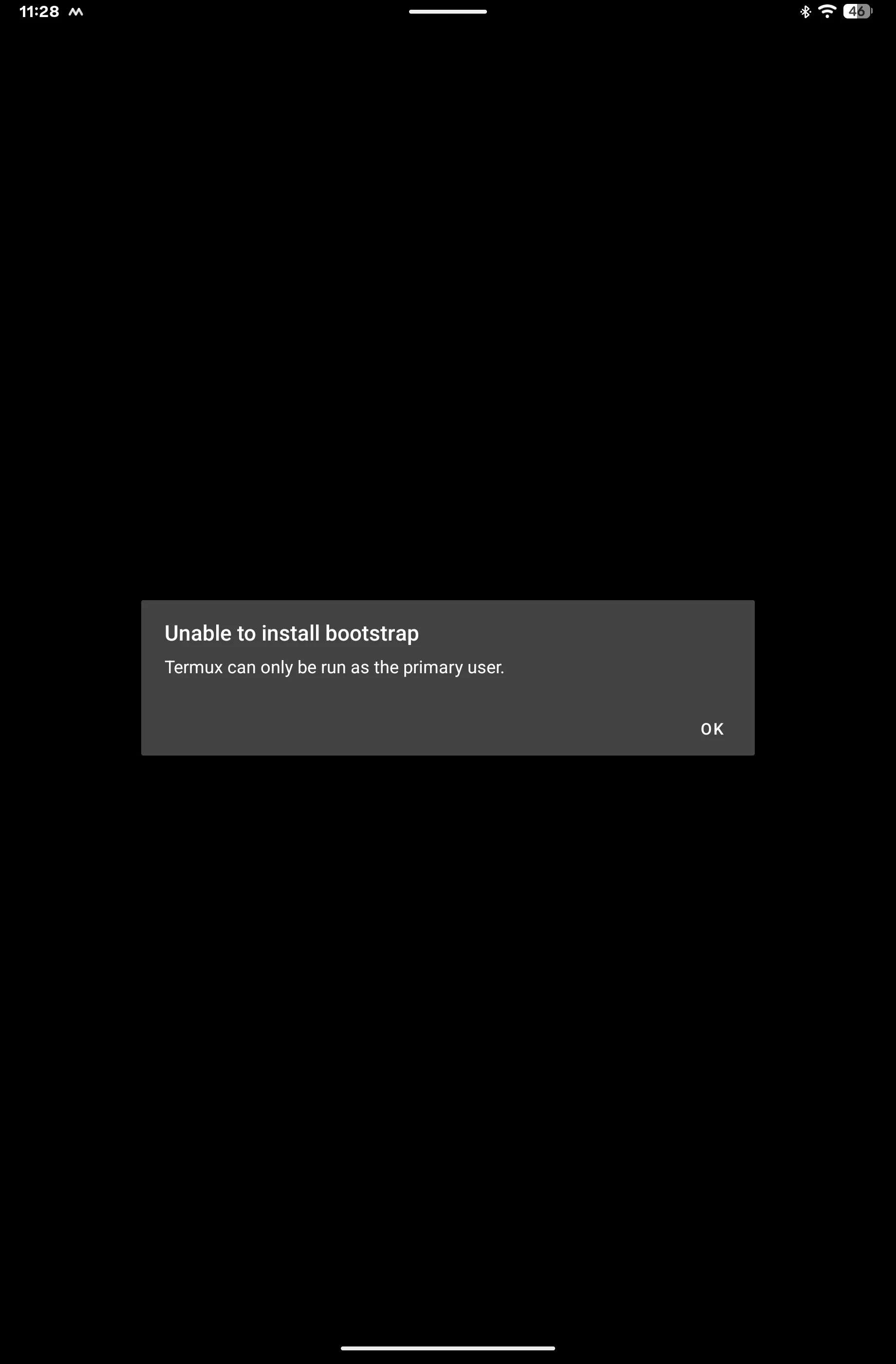
The detailed version of the message names the reason:
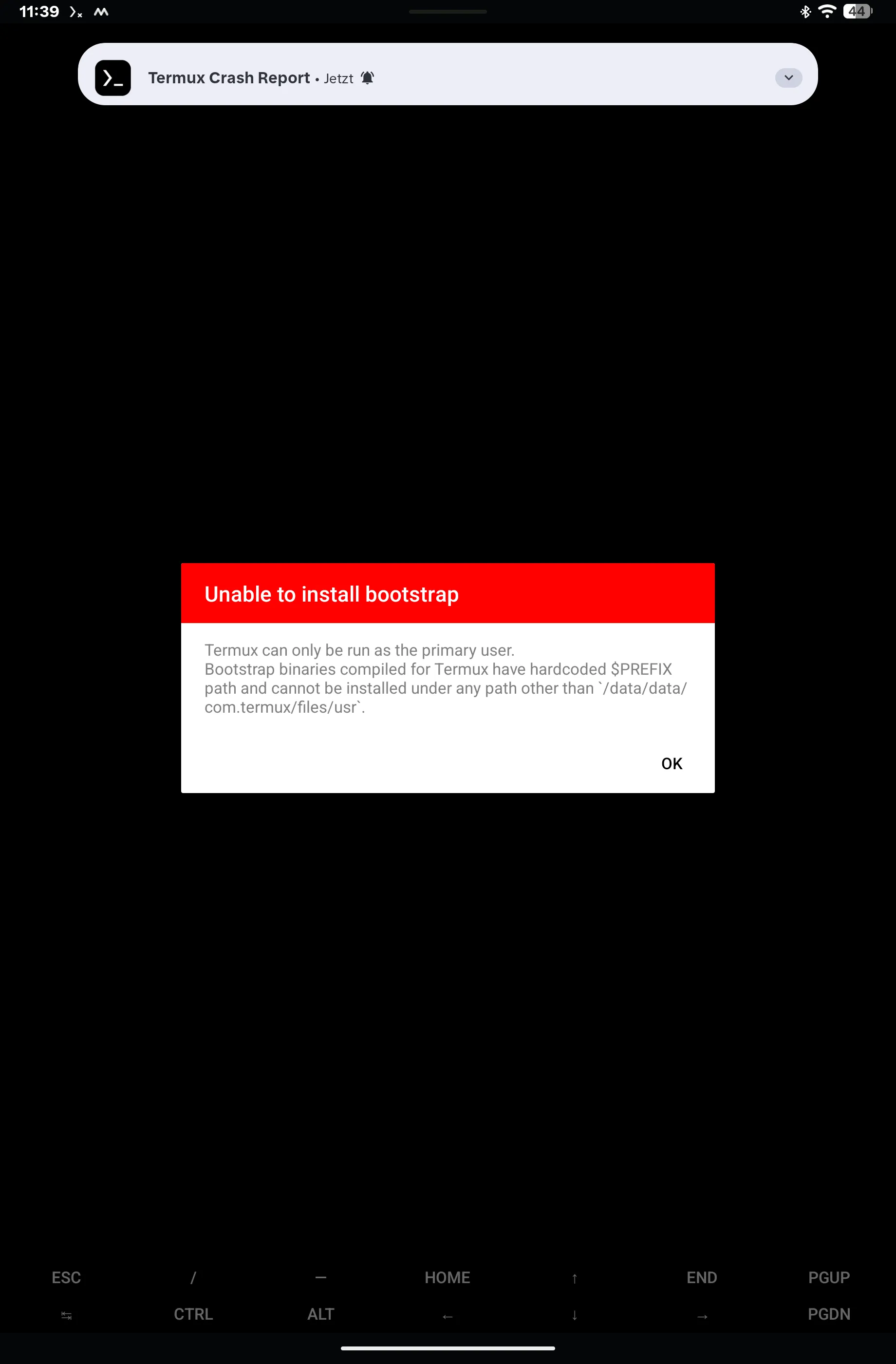
Termux can only be run as the primary user. Bootstrap binaries compiled for Termux have hardcoded $PREFIX path and cannot be installed under any path other than
/data/data/com.termux/files/usr.
Why Termux fails
Termux fails because of a path compiled into every package. All Termux packages are built for the prefix
/data/data/com.termux/files/usr, and /data/data is a symlink to /data/user/0, the app data of user 0.
- Under user 10, the app data lives in
/data/user/10/com.termux. Termux checks at startup whether it runs as user 0 and aborts otherwise. - In headless mode, user 0 has no UI. You cannot switch to it, and you must never remove user 10.
- A custom Termux build with a prefix under
/data/user/10/…would be possible in theory, but requires recompiling the entire package repository.
Attempt: install and start Termux as user 0
Starting Termux as user 0 does not work either. I tested this with
termux-app_v0.119.0-beta.3+apt-android-7-github-debug_arm64-v8a.apk.
Installing for user 10 works, but the app then fails at the bootstrap as shown above:
C:\> adb install --user 10 termux-app_v0.119.0-beta.3+apt-android-7-github-debug_arm64-v8a.apk
Performing Streamed Install
Success
Installing for user 0 with adb install --user 0, on the other hand, hangs without any further output. According to
logcat, Play Protect approves the app, but Android then also wants to hand it to the developer verifier
com.google.android.verifier. That is only installed for user 10, and Android keeps retrying for user 0 with growing
intervals:
Finsky  : VerifyApps: [ADV] No verification policy was set for user 0. Using default policy.
Finsky  : VerifyApps: [ADV] Verifier app is not installed. Passing by default for com.termux (id=2)
Finsky  : VerifyApps: [ADV] Enforced verdict for com.termux: VERIFICATION_ALLOW
12:54:27 ActivityManager: Unable to start service Intent { act=com.google.android.verifier.backport.VERIFY_PACKAGE … } U=0: not found
12:54:28 ActivityManager: Unable to start service Intent { … } U=0: not found
12:54:31 ActivityManager: Unable to start service Intent { … } U=0: not found
12:54:35 ActivityManager: Unable to start service Intent { … } U=0: not found
This is another headless effect: system components that are only installed for the real user are missing for the system user. An Amazon account plays no role here.
Enabling the already installed package for user 0 bypasses the check:
C:\> adb shell pm install-existing --user 0 com.termux
Package com.termux installed for user: 0
Starting it for user 0 is accepted, but never carried out:
C:\> adb shell am start --user 0 -n com.termux/.app.TermuxActivity
Starting: Intent { cmp=com.termux/.app.TermuxActivity }

C:\> adb shell am start --user 0 -n com.termux/.app.TermuxActivity
Starting: Intent { cmp=com.termux/.app.TermuxActivity }
Warning: Activity not started, its current task has been brought to the front

C:\> adb shell pidof com.termux
(empty)

C:\> adb shell dumpsys activity activities | findstr /i termux
  * Task{652f45b #1000393 type=standard A=10303:com.termux U=0 visible=false visibleRequested=false mode=fullscreen translucent=true sz=1}
    * Hist  #0: ActivityRecord{21272426 u0 com.termux/.app.TermuxActivity t1000393}
      packageName=com.termux processName=com.termux
      dataDir=/data/user/0/com.termux
Android creates a task for user 0 but never shows it (visible=false) and does not even start a process. The irony:
for user 0, Termux would sit with dataDir=/data/user/0/com.termux exactly under the path the bootstrap needs. Tapping
the Termux icon still always starts the user 10 instance.
| Step | Result |
|---|---|
| Termux for user 10 | Bootstrap error, the prefix points to user 0 |
adb install --user 0 |
Hangs, because the developer verifier is missing for user 0 |
pm install-existing --user 0 |
Installation succeeds |
am start --user 0 |
Accepted, the task stays invisible, no process |
You can clean up with adb uninstall com.termux. That removes Termux for all users.
Side note: the 16 KB warning
When the debug build of Termux starts, an additional compatibility dialog appears that has nothing to do with the bootstrap problem:
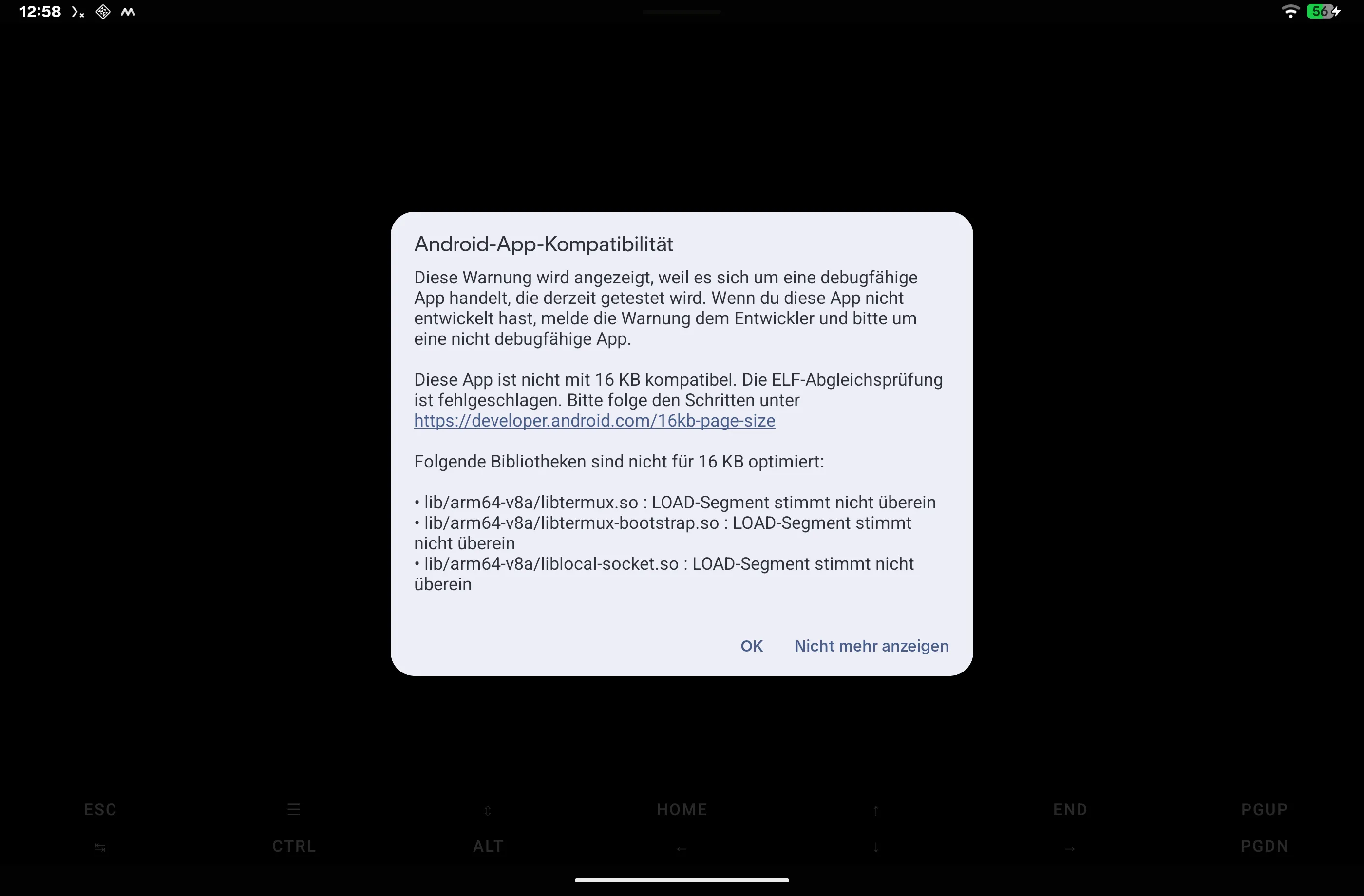
The tablet uses 4 KB pages (adb shell getconf PAGESIZE returns 4096). According to the dialog text, Android 16
shows the warning because it is a debuggable app, as a hint for developers. Background on 16 KB pages is in the
Android documentation. You can dismiss the dialog with
“Don’t show again”.
The Android 16 Linux terminal
The Android 16 Linux terminal can be unlocked on the Alexa Tablet 12 Pro, but it does not boot Debian. The app uses the Android Virtualization Framework (AVF) and runs Debian in a virtual machine.
Checking the requirements
C:\> adb shell getprop ro.boot.hypervisor.vm.supported
1

C:\> adb shell getprop ro.boot.hypervisor.protected_vm.supported
(empty)

C:\> adb shell pm list features | findstr virtual
feature:android.software.virtualization_framework

C:\> adb shell ls -l /dev/kvm /dev/gzvm
ls: /dev/kvm: No such file or directory
crw-rw-rw- 1 root root 10, 266 2026-10-21 10:16 /dev/gzvm
Non-protected VMs are supported, protected VMs (pVM) are not. That is enough for the terminal, which uses a
non-protected VM. The hypervisor is MediaTek GenieZone instead of KVM. The Terminal app
com.android.virtualization.terminal is disabled out of the box.
Unlocking it
adb shell pm enable --user 10 com.android.virtualization.terminalAfter that, the developer options show the toggle “Linux development environment (experimental)”. Once it is on, the “Terminal” app appears in the app drawer and downloads the Debian image on first launch.
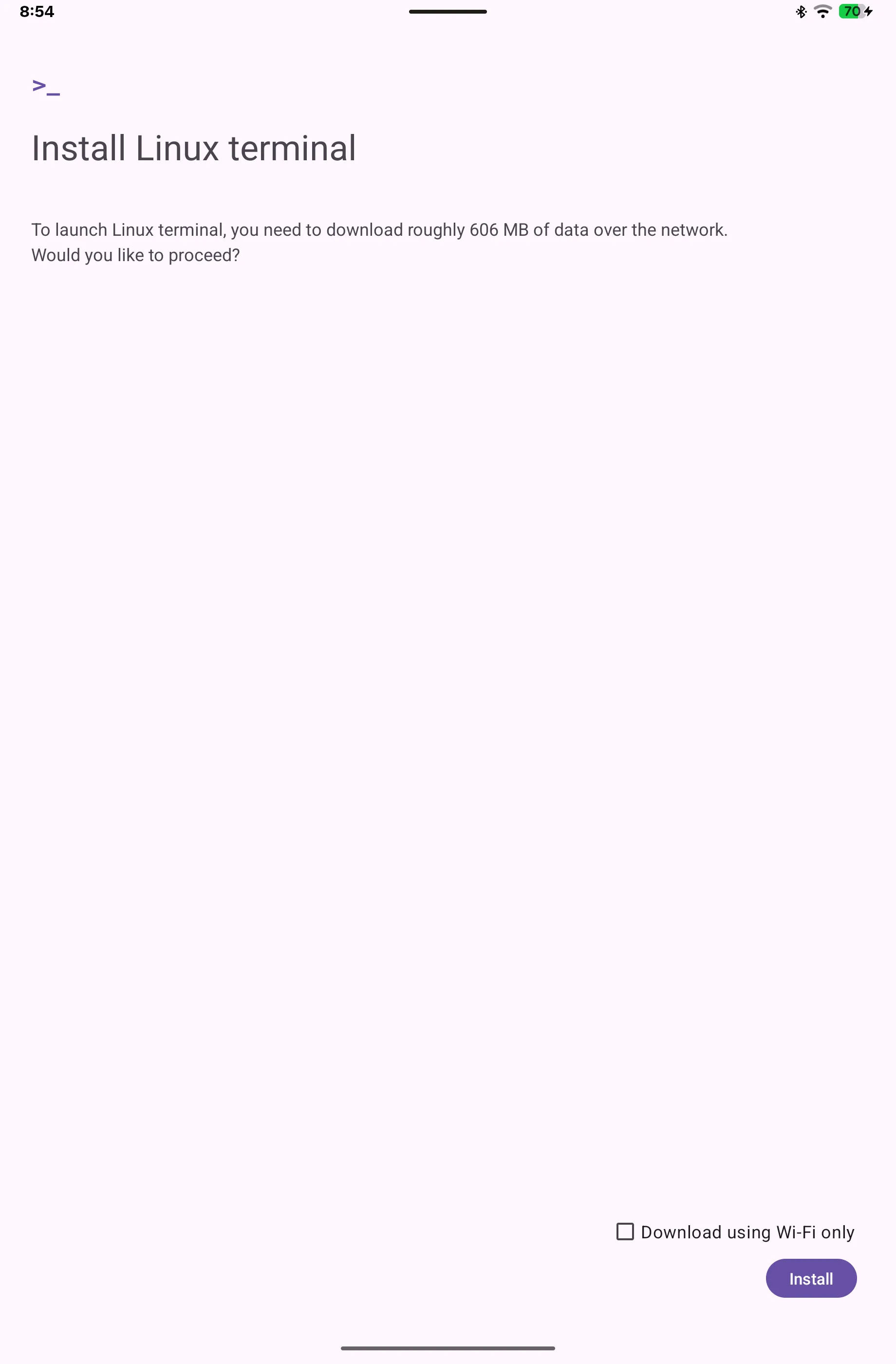
The error: an unrecoverable error
After the download, “Preparing terminal” appears. The loading animation runs for minutes, then an unrecoverable error appears. Starting again leads to the same result.
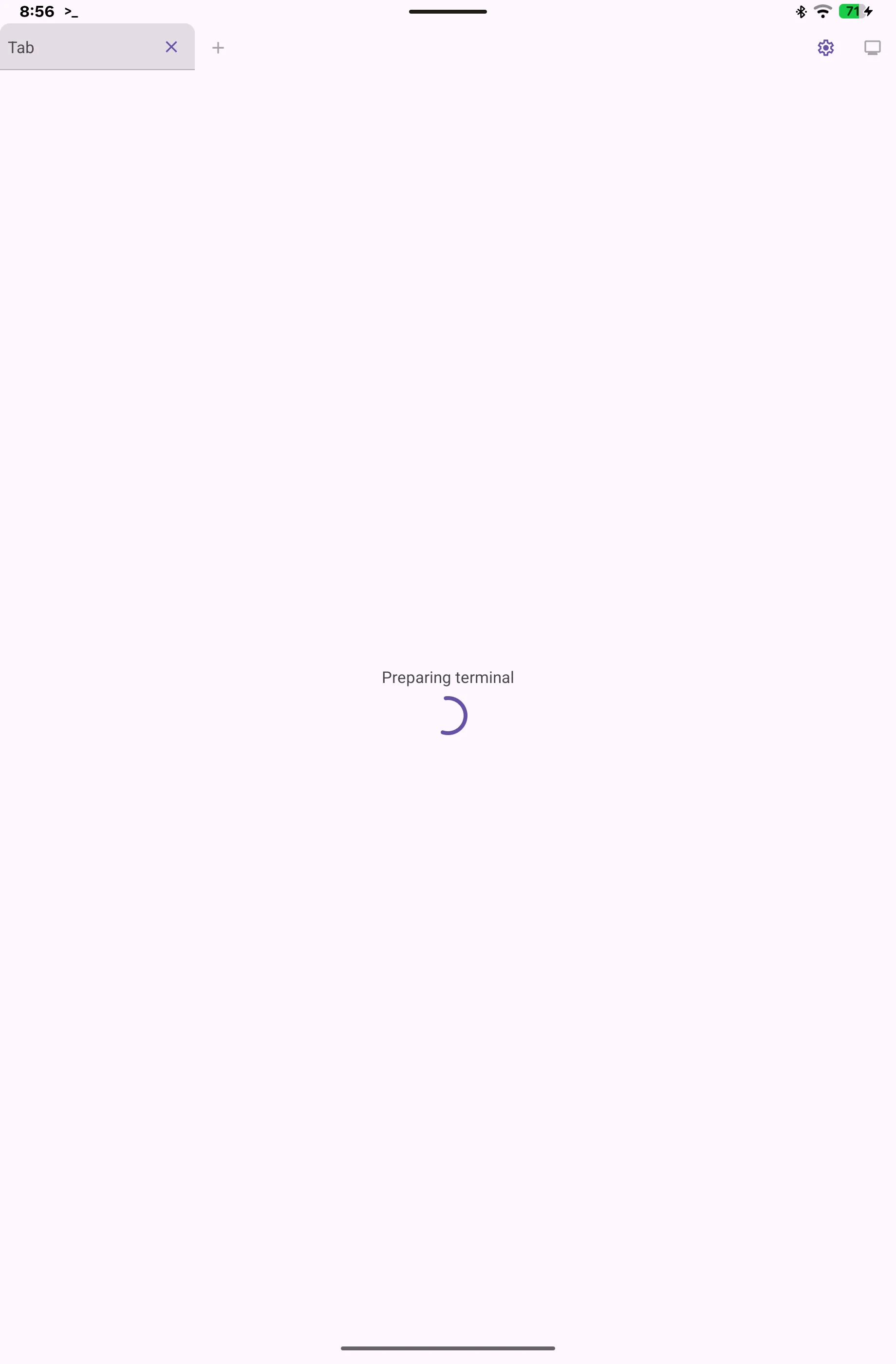
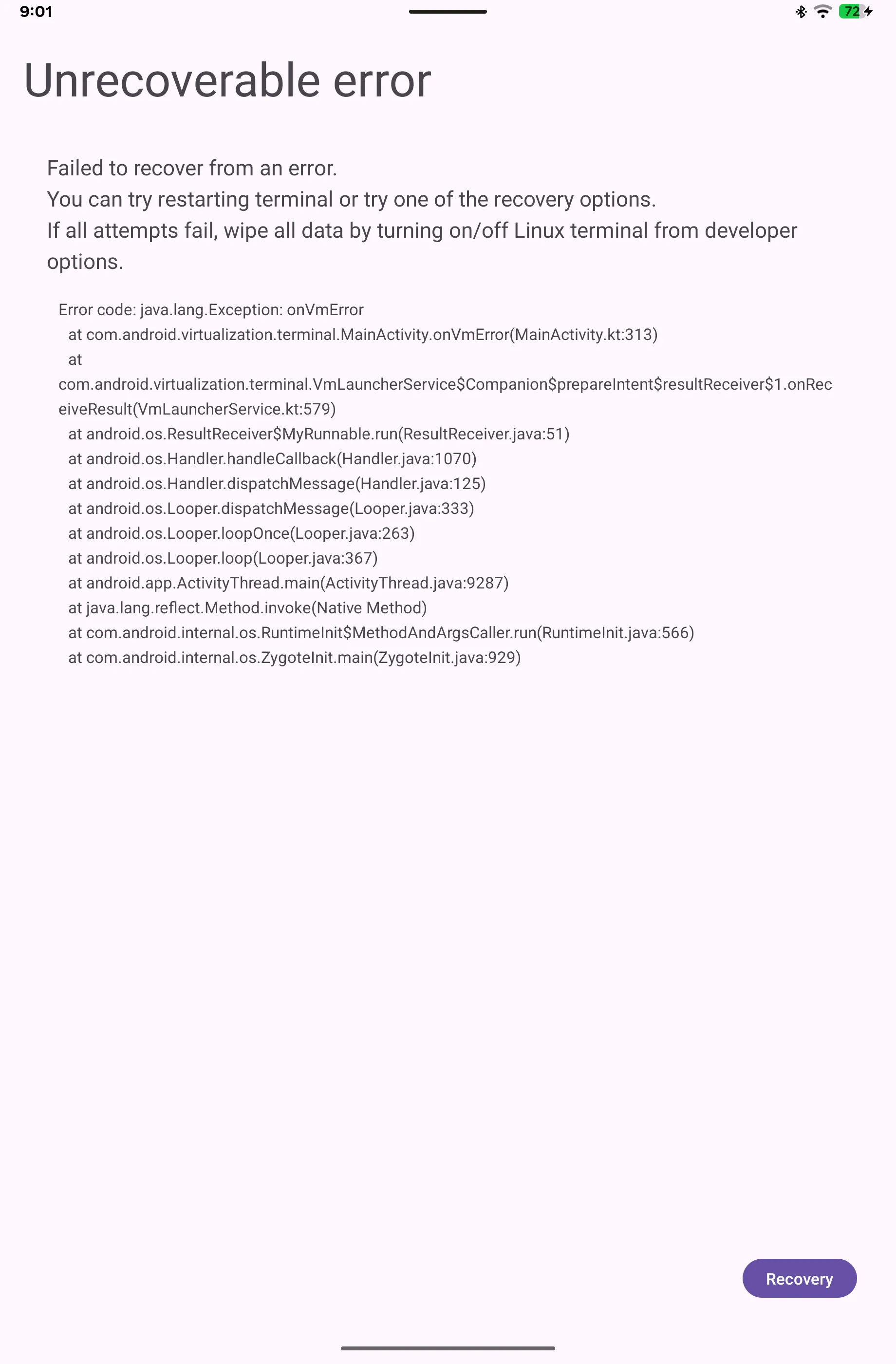
Further observations:
- The display icon at the top right (virtual VM display) is grayed out and does not respond.
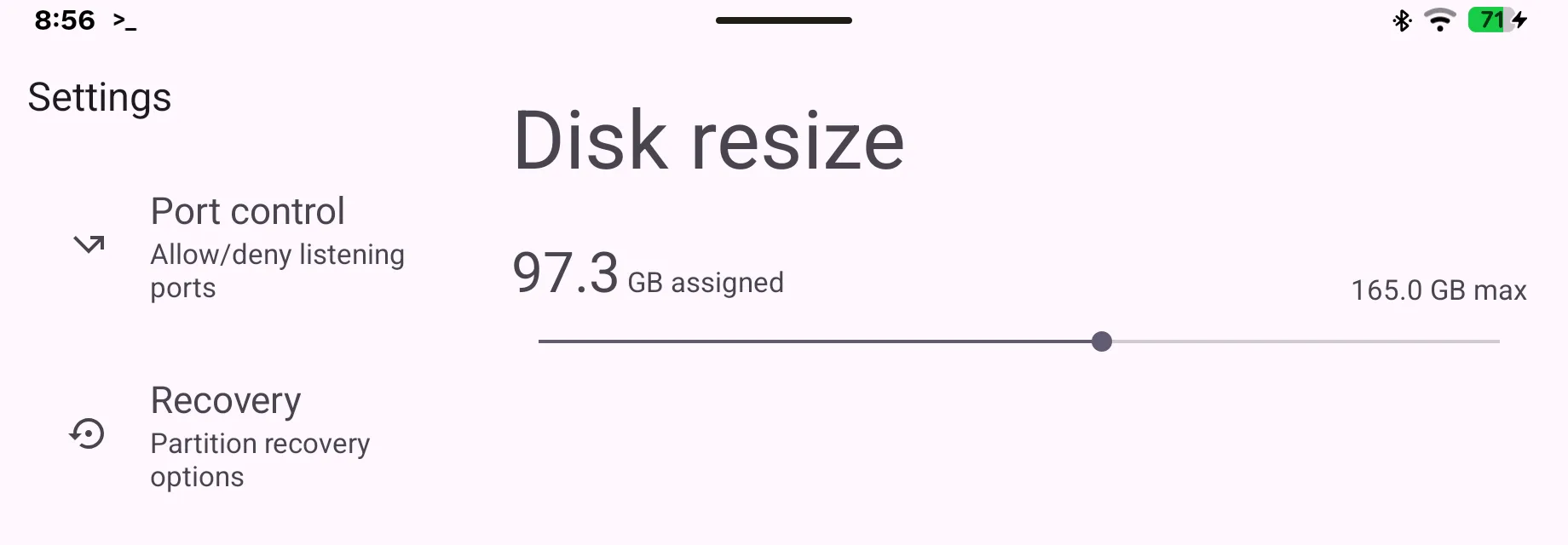
- The settings show Port control and Recovery, and in another run also Disk resize for the size of the virtual disk (97.3 of a maximum of 165 GB in my case). Port control does not help as long as Debian does not boot. I also reset the terminal via Recovery: the next start ended with the same error.
- While the VM runs, music playback over Bluetooth has short dropouts.
What the logs show
The VM is created and started, under user 10. So headless mode does not block the VM, unlike with Termux:
virtmgr : Non-protected virtual machine "debian" (owner: u10_a252, cid: 2051) created
virtmgr : Non-protected virtual machine "debian" (owner: u10_a252, cid: 2051) started
crosvm  : creating hypervisor: Geniezone { device: Some("/dev/gzvm") }
crosvm  : Trying to attach block device: /proc/self/fd/50
crosvm  : Trying to attach block device: /proc/self/fd/46
The key parameters from the crosvm call (the virtual machine monitor of AVF):
| Parameter | Value |
|---|---|
| Kernel command line | root=/dev/vda1 ds=nocloud arm64.nompam 8250.nr_uarts=4 console=ttyS0 |
| Memory | --mem 4096 (4 GB), no memory balloon |
| CPU | --host-cpu-topology, sve=[auto=true], --no-pmu |
| Graphics | --gpu=backend=2d, window 1280×720 |
| Sound | --virtio-snd backend=aaudio |
| Network | TAP interface avf_tap_fixed |
Android sets up the network for the guest and starts a DHCP server. The Terminal app waits via mDNS for the web terminal to appear in the Debian guest. After that, nothing happens: no DHCP lease for the guest, no mDNS announcement, but no crosvm crash either.
Also notable: the app’s logger aborts right at startup (Failed to log VM log output), so the guest’s console output
is missing from logcat. SELinux denies the VM manager access to graphics resources
(avc: denied { use } … tcontext=u:r:surfaceflinger:s0), which probably explains the grayed-out display icon.
After about 16 minutes of runtime, it looked like this:
C:\> adb shell top -b -n 1 -m 8
  Mem:  7047680K total,  6877496K used,   170184K free
 Swap:  3143860K total,  2918104K used,   225756K free
800%cpu  32%user   4%nice 100%sys 629%idle   0%iow  32%irq   4%sirq   0%host
  PID USER      PR  NI VIRT  RES  SHR S[%CPU] %MEM     TIME+ ARGS
24968 u10_a252  20   0  15G 133M 133M S 46.4   1.9  23:42.02 crosvm_debian …
24860 u10_a252  10 -10  41G 195M 120M S 32.1   2.8   2:25.96 com.android.virtualization.terminal

C:\> adb shell ip neigh show dev avf_tap_fixed
(empty)- crosvm had used about 24 minutes of CPU time, with the load at 100 % “sys”. So the work happens in the host kernel, not in the guest.
- crosvm only uses 133 MB of RAM, roughly the size of kernel and initrd. A booting Debian would touch far more memory.
ip neighis empty: the guest never sent a single network packet to the host.- Swap is 93 % full, which very likely explains the Bluetooth dropouts.
As a cross-check, I started the terminal right after a reboot with empty swap. The result was the same. Notably,
right after boot only 2.2 GB of RAM are available (MemAvailable), but the VM requests 4 GB.
The decisive log: watchdog after 60 seconds
Exactly 60 seconds after the start, the VM manager checks the guest’s CPU time. It is zero, so the VM is considered hung and killed with SIGKILL:
12:17:17.180 virtmgr : Non-protected virtual machine "debian" (owner: u10_a252, cid: 2048) started
12:17:17.219 crosvm  : creating hypervisor: Geniezone { device: Some("/dev/gzvm") }
12:18:17.218 virtmgr : Failed to get guest CPU time: zero value is measured on elapsed CPU guest_time
12:18:17.218 virtmgr : Killing VM (name: debian, cid: 2048) forcibly. Data might be corrupted!!!
12:18:17.248 virtmgr : Failed to get guest RSS: can't find VmHWM in the status file
12:18:17.250 virtmgr : crosvm(10189) exited with status signal: 9 (SIGKILL)
12:18:17.361 virtmgr : Non-protected virtual machine "debian" (owner: u10_a252, cid: 2048) exited
You can look at the filtered log excerpts (VM-related lines only) yourself: first start and reboot with watchdog kill.
Assessment
The virtual CPUs execute no guest code under Amazon’s GenieZone implementation. Debian does not even reach its first kernel message. Five pieces of evidence support this:
- The guest CPU time after 60 seconds is zero (watchdog log).
- High CPU load exists only on the host side (100 % “sys”), 24 minutes of crosvm CPU time without result.
- The guest only occupies 133 MB of memory.
- The guest shows no network activity at all, neither DHCP nor mDNS nor an ARP entry.
- Amazon disabled the Terminal app out of the box, possibly for exactly this reason.
Ruled out or unlikely:
- Headless mode: the VM is correctly created and started under user 10.
- Low memory: it can slow the guest down, but does not explain a guest CPU time of exactly zero. The test with empty swap changed nothing.
- Corrupted image: the block devices are attached, and the error occurs before the guest executes any code at all. Resetting via Recovery in the Terminal app changed nothing.
- Disabled Amazon apps: they have no influence on the hypervisor.
This cannot be fixed without root. The VM configuration (4 GB RAM, kernel parameters) lives in the protected app
directory /data/user/10/com.android.virtualization.terminal/, and the hypervisor and SELinux rules are part of the
firmware.
Cleaning up
- Turn off the Linux development environment in the developer options. This deletes the Debian image (several GB).
- Put the app back into its factory state:
adb shell pm disable-user --user 10 com.android.virtualization.terminalAlternatives
| Approach | Status |
|---|---|
| SSH client (Termius, ConnectBot) to your own server | Works, usable for everyday work with the keyboard case |
| UserLAnd (proot, no hardcoded paths) | Not tested, might work in headless mode |
LADB (local adb shell via wireless debugging) |
Not tested. Only the Android toolbox, no apt, but usable without a PC |
Custom Termux build with a prefix under /data/user/10 |
Possible in theory, too much effort in practice |
| Test the Linux terminal again after future Alexa Tablet UI updates | Open |
Command reference
| Purpose | Command |
|---|---|
| Show users | adb shell pm list users |
| Active user | adb shell am get-current-user |
| Check headless mode | adb shell getprop ro.fw.mu.headless_system_user |
| VM support | adb shell getprop ro.boot.hypervisor.vm.supported |
| Protected VMs | adb shell getprop ro.boot.hypervisor.protected_vm.supported |
| Hypervisor device | adb shell ls -l /dev/kvm /dev/gzvm |
| Enable an app for user 0 | adb shell pm install-existing --user 0 <package> |
| Is a process running? | adb shell pidof com.termux |
| Page size | adb shell getconf PAGESIZE |
| Unlock the Terminal app | adb shell pm enable --user 10 com.android.virtualization.terminal |
| Guest on the network? | adb shell ip neigh show dev avf_tap_fixed |
| VM log after an error | adb logcat -d -s crosvm virtmgr VirtualizationService |
| Available RAM | adb shell cat /proc/meminfo (line MemAvailable) |
Conclusion
Running Linux locally on the Alexa Tablet 12 Pro is currently not possible without root. Termux fails on Headless System User Mode, the Android 16 Linux terminal on Amazon’s GenieZone implementation. For the command line, an SSH client that connects to a server of your own remains. As of October 23, 2026, I found no other reports on Termux or the Linux terminal on the Alexa Tablet 12 Pro, and no Alexa Tablet UI update newer than 16.1.10. I will test the terminal again after the next Alexa Tablet UI updates and add the result here.
How to free the tablet from Amazon apps, ads and telemetry first is covered in Alexa Tablet 12 Pro debloat. The other direction often works, by the way: with Waydroid, Android runs as LineageOS in a container on Linux PCs. According to the official statistics, that is even the most common “device” running LineageOS, see LineageOS user numbers.
Frequently asked questions
Why does Termux show "Unable to install bootstrap" on the Alexa Tablet 12 Pro?
Termux packages are compiled for the fixed path /data/data/com.termux/files/usr, and /data/data points to the app data of user 0. The tablet runs in Headless System User Mode, the actual user is user 10. Termux detects this and aborts with "Termux can only be run as the primary user".
Can I start Termux as user 0?
No. With pm install-existing --user 0 com.termux you can install Termux for user 0, and am start --user 0 is accepted. But Android never shows the task and does not even start a process, because the headless system user has no UI.
Does the Android 16 Linux terminal work on the Alexa Tablet 12 Pro?
No, as of October 2026 and build SL16SHIP2003.1344N. The app can be unlocked via ADB and starts a Debian VM under MediaTek's GenieZone hypervisor. But the guest CPU executes no code, the watchdog kills the VM after 60 seconds and the app reports an unrecoverable error with onVmError.
How do I detect Headless System User Mode?
adb shell getprop ro.fw.mu.headless_system_user returns true, adb shell am get-current-user returns a number other than 0, and in adb shell pm list users, user 0 has no name and no FULL flag.