TL;DR
You can debloat the Alexa Tablet 12 Pro via ADB without root, but only with --user 10: the device runs in Headless System User Mode, so commands for user 0 change nothing. I removed 53 packages and disabled 7, but kept the Fire launcher, because the home gesture breaks without it. Storage is only freed once you also delete the app updates (about 1.65 GB in my case).
- Tested with
- Alexa Tablet UI 16.1.10 (build SL16SHIP2003.1344N)
- Time
- approx. 10 min
- Difficulty
- medium
Tested on
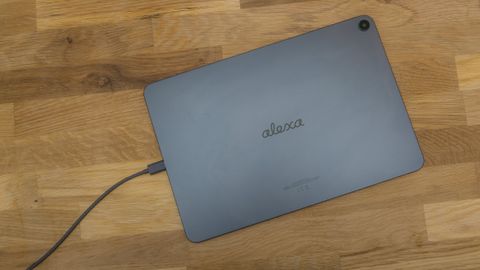
Amazon Alexa Tablet 12 Pro (Wi-Fi, ATSPWI)
What you need
- Computer with the Android SDK Platform Tools (adb)
- USB cable and USB debugging enabled on the tablet
- A replacement launcher (e.g. Lawnchair) and keyboard (e.g. Gboard) from the Play Store
Contents (21 sections)
- The device: Alexa Tablet UI with Google Play out of the box
- Important first: user 10, not user 0
- Preparation
- The script: everything in one go
- What comes preinstalled
- What I removed
- Ads, recommendations and decoration
- Demo, setup and support packages
- Amazon apps and services
- Alexa
- Account-bound Amazon features
- Google apps
- AOSP leftovers
- Disable telemetry instead of removing it
- What you should keep
- Optional, depending on what you use
- The Fire launcher and the home gesture
- Hide the Alexa icon in the taskbar
- Honest storage numbers
- How to actually free up storage
- Conclusion
The device: Alexa Tablet UI with Google Play out of the box
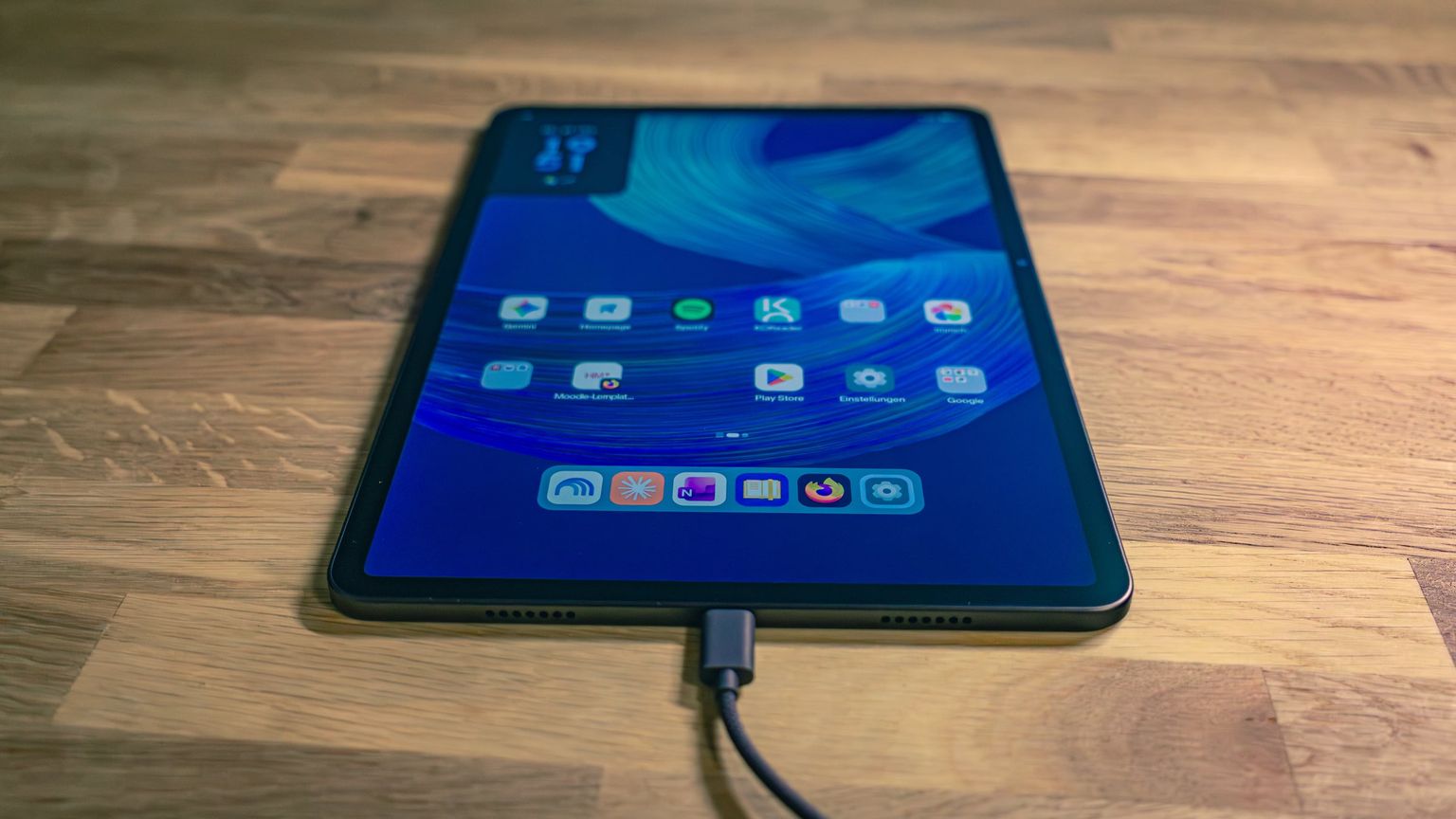
The Alexa Tablet 12 Pro is the first Amazon tablet that ships with the full Google services alongside the Amazon ecosystem. Out of the box, the Play Store, Play services, Chrome and Gmail run in parallel with Alexa, Kindle, Prime Video and Amazon’s own Appstore.
| Property | Value |
|---|---|
| Device | Amazon Alexa Tablet 12 Pro (Wi-Fi) |
| Model ID | ATSPWI |
| Internal codename | spinel (from the package i18n.product.name.overlay.spinel) |
| Android version | 16 |
| Operating system | Alexa Tablet UI 16.1.10 |
| Build | SL16SHIP2003.1344N |
| SoC | MediaTek MT8793 according to Geekbench 7 (Amazon lists MT8793N), 8 cores at 1 × 3.25, 3 × 3.0 and 4 × 2.1 GHz like the Dimensity 8400 (MT6899), which the package com.mediatek.mt6899.gamedriver is also named after |
Internal storage (/data) |
102 GB, 15 GB of it used |
| Google Play | preinstalled |
Debloating here means removing or disabling preinstalled apps and services for your user via ADB (Android Debug Bridge, the command line tool for Android devices). You do not need root for this.
Important first: user 10, not user 0
On the Alexa Tablet 12 Pro, you have to run every command with --user 10, not with --user 0. The device runs in
Headless System User Mode (HSUM): user 0 is an invisible system user without a UI, the actual user is user 10.
Almost all debloat guides online use --user 0 and therefore do not work here.
C:\> adb shell pm list users
Users:
        UserInfo{0:null:813} running
        UserInfo{10:<Name>:4412} running
User 0 has no name, user 10 carries the account holder’s name (redacted here). For me, every command with --user 0
dutifully reported Success, but nothing changed on screen. Gmail, Google Photos and YouTube Music even reported
not installed for 0 right away, because many user apps are not installed for the system user at all.
Preparation
Install the Platform Tools on your computer
adbis part of Google’s free Android SDK Platform Tools. You do not need Android Studio. Choose your operating system:On Windows 10 and 11, the easiest way is the built-in package manager winget. Open PowerShell or Terminal and run:
winget install --id Google.PlatformTools -eLater updates take one command:
winget upgrade Google.PlatformTools.Without winget: download platform-tools-latest-windows.zip from Google, extract it to
C:\platform-toolsand add that folder to yourPath: search the Start menu for Edit environment variables for your account, selectPath, click Edit, then New.Open a new PowerShell window and check that
adbis found:adb versionWith Homebrew, one command is enough:
brew install --cask android-platform-toolsWithout Homebrew: download the official zip in Terminal, unpack it into your home folder and add it to your
PATH(zsh is the default shell on macOS):curl -LO https://dl.google.com/android/repository/platform-tools-latest-darwin.zip unzip platform-tools-latest-darwin.zip -d ~ echo 'export PATH="$HOME/platform-tools:$PATH"' >> ~/.zshrcOpen a new Terminal window and check that
adbis found:adb versionInstall
adbfrom your distribution, together with the udev rules that letadbaccess the tablet without root. Debian, Ubuntu and Linux Mint:sudo apt install adb android-sdk-platform-tools-commonFedora:
sudo dnf install android-toolsArch Linux:
sudo pacman -S android-tools android-udevDistribution packages can lag a few versions behind Google. That is fine for this guide. If you want the current release, use the official zip instead (you still need the udev rules from above):
curl -LO https://dl.google.com/android/repository/platform-tools-latest-linux.zip
unzip platform-tools-latest-linux.zip -d ~
echo 'export PATH="$HOME/platform-tools:$PATH"' >> ~/.bashrc
Open a new terminal and check that
adbis found:adb versionIf
adb deviceslater showsno permissions, the udev rules are missing. Install them and plug the tablet in again.Turn on USB debugging
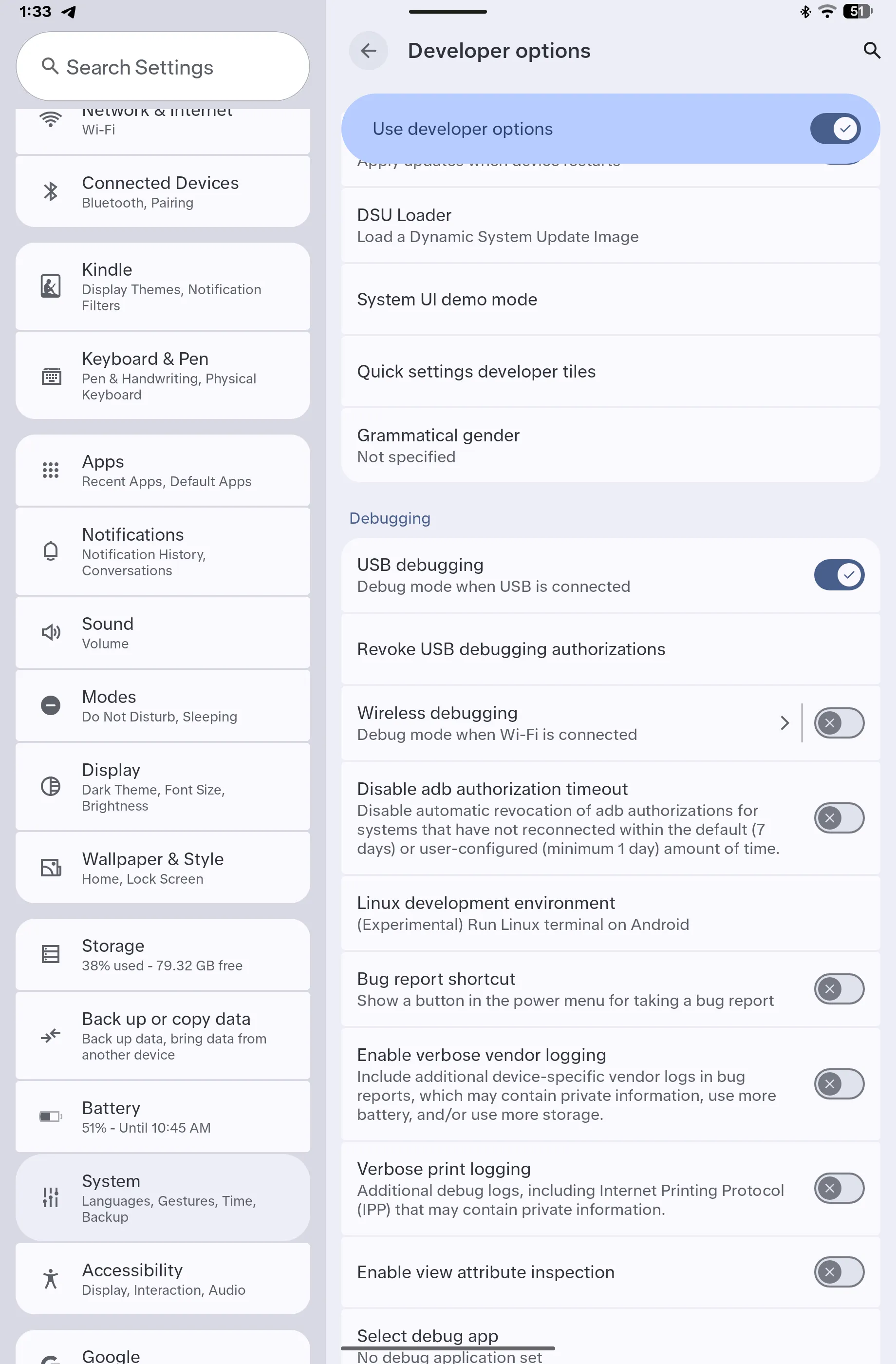
Unlock the developer options first: scroll to the bottom of the settings, open the tablet info page (Tablet-Info in the German UI) and tap Build number seven times. The developer options then appear under Settings → System → Developer options.
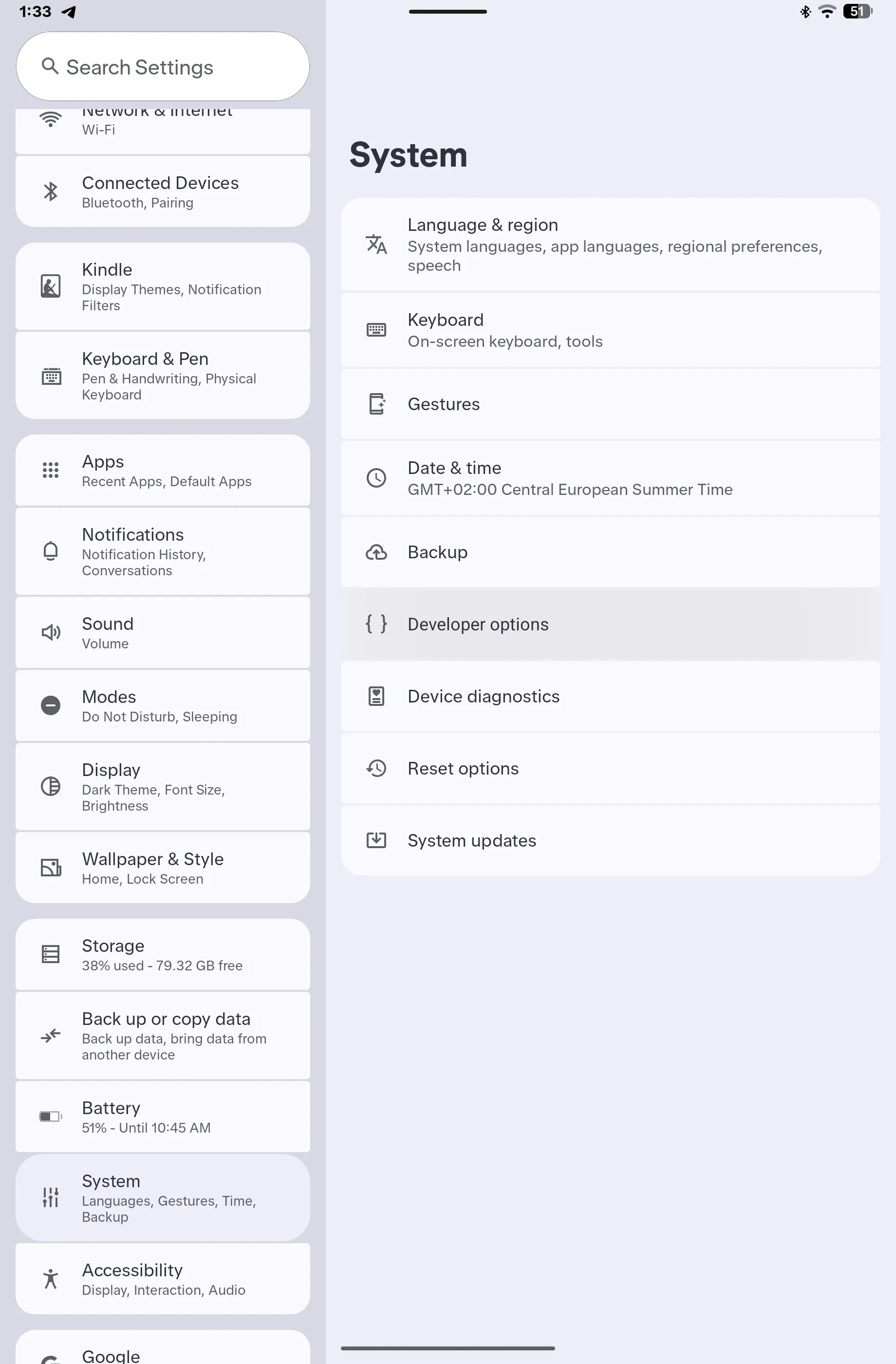
Turn on Use developer options at the top and enable USB debugging in the Debugging section.
Connect the tablet
Connect the tablet via USB and confirm the USB debugging prompt on the screen. The device must then show up in the list:
adb devicesIf the tablet is detected correctly, it shows up with its serial number and the status
device(serial number redacted here):C:\> adb devices List of devices attached <serial number> deviceOn the very first call,
adbstarts its background service first and the list can still be empty. In my log, the first call returned an empty list and the second one showed the tablet. So confirm the prompt and runadb devicesagain. If it showsunauthorizedinstead ofdevice, the prompt on the tablet has not been confirmed yet.Check the active user
adb shell am get-current-userIf it returns
10, all commands in this article fit. If you get a different number, replace10with your value everywhere.Install replacements before removing anything
Install another launcher from the Play Store (I use Lawnchair) and another keyboard such as Gboard, and set both as the default. Switch the digital assistant and sign out of your Amazon account if you also want to remove the account-bound Amazon features.
The script: everything in one go
My script does everything the rest of this guide describes in one go, and you can run it again after every system update. It runs directly on the tablet, so the commands are identical on Windows, macOS and Linux.
- Download: alexa-tablet-debloat.sh (version 1.0, MIT license, view in browser)
- Checksum: alexa-tablet-debloat.sh.sha256
Read the script before running it. It detects the active user itself (am get-current-user), checks the model
(ATSPWI) and aborts on other devices. It never touches the Fire launcher and only disables the Fire keyboard when
another keyboard is active.
adb push alexa-tablet-debloat.sh /data/local/tmp/
adb shell sh /data/local/tmp/alexa-tablet-debloat.sh --dry-run
adb shell sh /data/local/tmp/alexa-tablet-debloat.sh --all --free-space
Without options, it only removes ads, demo and SIM leftovers and disables telemetry (also for user 0). Everything else you switch on deliberately:
| Option | Effect |
|---|---|
--amazon-apps |
Prime Video, Music, Audible, Kindle, Shopping, Photos, Appstore, Silk, Luna, Amazon Kids |
--alexa |
Remove Alexa and hide the Alexa icon (until the next reboot) |
--no-account |
Account-bound Amazon features, only useful without an Amazon account |
--google |
Duplicate Google apps: Gmail, Drive, Photos, Calendar, Google TV, YouTube Kids/Music, Meet |
--a11y |
Google accessibility apps (TalkBack, Switch Access, Voice Access) |
--keyboard |
Disable the Fire keyboard |
--free-space |
Delete updates of the removed system apps |
--all |
Same as --amazon-apps --alexa --no-account --google |
--dry-run |
Only show what would happen, change nothing |
--restore |
Undo everything |
Which packages each option covers, and why, is explained under What I removed.
If you save the script on Windows with CRLF line endings, sh aborts with \r: not found. You can fix that right on
the device:
adb shell "sed -i 's/\r$//' /data/local/tmp/alexa-tablet-debloat.sh"What comes preinstalled
pm list packages -s lists 297 system packages on the tablet. In my case, there were also 20 apps I had installed myself.
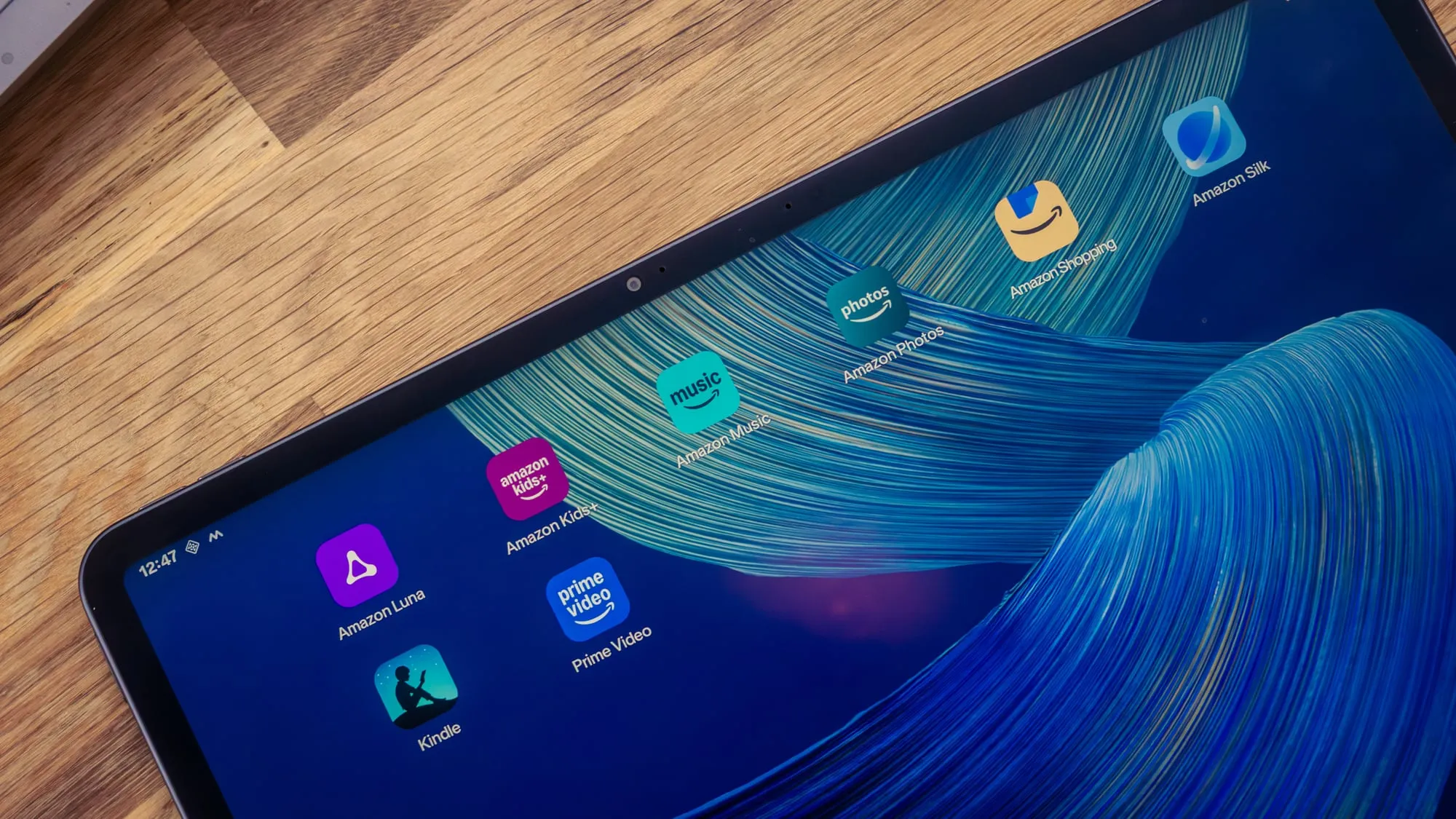
| Category | Count | Examples |
|---|---|---|
| Amazon / Alexa Tablet UI | 85 | Fire launcher, Alexa, Kindle, Prime Video, Appstore, account and telemetry services |
| Google (GMS) | 75 | Play services, Play Store, Chrome, Gmail, YouTube, Photos, Drive, Maps |
| AOSP / Android system | 70 | SystemUI, Settings, providers, print service, Bluetooth MIDI |
| Overlays (RROs) | 62 | Display cutout emulation, navigation bar modes, GMS configuration, Amazon product overlays |
| MediaTek (SoC) | 3 | GPU game driver, network overlays |
| Dolby | 2 | Dolby Atmos service and UI |
Most Amazon and Google apps live on the /product partition (158 packages), the AOSP core under /system (57). There
are also 32 mainline modules under /apex, which Google Play updates and which cannot be removed, and 18 system apps
under /data/app that are already newer than the factory version thanks to updates.
Many Amazon packages have meaningless codenames such as spiderpork, junco or diode.
What I removed
In total I removed 53 packages and disabled 7 packages, each only for user 10. Removing works like this:
adb shell pm uninstall -k --user 10 <package>-k keeps app data and cache so a restore is quick. For several packages, open a shell on the tablet with adb shell
and paste one of the lines below at a time. This works the same on Windows, macOS and Linux, because the loop runs
on the tablet. You can bring any package back with:
adb shell cmd package install-existing --user 10 <package>The “APK” column shows the size of the respective base.apk. What that means for free storage is explained in
Honest storage numbers.
Ads, recommendations and decoration
| Package | Purpose | APK |
|---|---|---|
com.amazon.wallpaper |
Amazon live wallpapers | 64.9 MB |
com.amazon.kindle.kso |
“Special Offers”: ads on the lock screen | 25.2 MB |
com.amazon.firespotlight |
Spotlight: “Featured Content & Recommendations” and “limited-time offers” as notifications | 23.8 MB |
com.amazon.hedwig |
Fire Channels: “For you” feed in the launcher | 16.5 MB |
com.amazon.partnerbrowsercustomizations |
Amazon homepage and bookmarks for Chrome, ran in the background | 0.5 MB |
com.amazon.dags.tableteducation |
Tips and tutorial | 0.2 MB |
for p in com.amazon.wallpaper com.amazon.kindle.kso com.amazon.firespotlight com.amazon.hedwig com.amazon.partnerbrowsercustomizations com.amazon.dags.tableteducation; do pm uninstall -k --user 10 $p; doneDemo, setup and support packages
| Package | Purpose | APK |
|---|---|---|
com.amazon.ods.kindleconnect |
Mayday Screen Sharing: screen sharing with Amazon customer service | 10.4 MB |
com.amazon.kindle.otter.oobe.forced.ota |
Forced update during initial setup | 7.7 MB |
com.amazon.tablet.chameleon |
Moves apps from an old Fire tablet over to Google Play | 6.3 MB |
com.amazon.csapp |
Customer service app | 5.8 MB |
com.amazon.d3 |
Demo Device Daemon: store demo mode, may reboot, install apps and write settings | 4.6 MB |
com.amazon.cx_offline |
Demo Offline: kiosk demo for stores, including an accessibility service | 3.4 MB |
com.amazon.samplewifiapp |
Sample app without a function | < 0.1 MB |
for p in com.amazon.ods.kindleconnect com.amazon.kindle.otter.oobe.forced.ota com.amazon.tablet.chameleon com.amazon.csapp com.amazon.d3 com.amazon.cx_offline com.amazon.samplewifiapp; do pm uninstall -k --user 10 $p; doneAmazon apps and services
| Package | Purpose | APK |
|---|---|---|
com.amazon.mp3 |
Amazon Music | 281.4 MB |
com.amazon.cloud9 |
Silk browser | 254.0 MB |
com.amazon.avod |
Prime Video | 159.0 MB |
com.amazon.kindle |
Kindle | 132.8 MB |
com.amazon.clouddrive.photos |
Amazon Photos | 130.4 MB |
com.audible.application.kindle |
Audible | 47.7 MB |
com.amazon.tahoe.grownups |
Amazon Kids (parent dashboard) | 43.9 MB |
com.amazon.tahoe |
Amazon Kids | 29.9 MB |
com.amazon.venezia |
Amazon Appstore | 24.4 MB |
com.amazon.cloud9.kids |
Silk for kids profiles | 19.7 MB |
com.amazon.spiderpork |
Amazon Luna (cloud gaming) | 19.1 MB |
com.amazon.tahoe.platform |
Amazon Kids platform | 1.0 MB |
com.amazon.windowshop |
Amazon Shopping | 0.7 MB |
for p in com.amazon.mp3 com.amazon.cloud9 com.amazon.avod com.amazon.kindle com.amazon.clouddrive.photos com.audible.application.kindle com.amazon.tahoe.grownups com.amazon.tahoe com.amazon.venezia com.amazon.cloud9.kids com.amazon.spiderpork com.amazon.tahoe.platform com.amazon.windowshop; do pm uninstall -k --user 10 $p; doneAlexa
| Package | Purpose | APK |
|---|---|---|
com.amazon.dee.app |
Alexa app | 472.1 MB |
com.amazon.tablet.voiceassistant |
Alexa voice control and tiles in Quick Settings | 18.2 MB |
com.amazon.alexa.calendar.app |
Alexa calendar | 5.2 MB |
com.amazon.genai.edgeaiagent |
Alexa+ / on-device AI agent | 0.7 MB |
for p in com.amazon.dee.app com.amazon.tablet.voiceassistant com.amazon.alexa.calendar.app com.amazon.genai.edgeaiagent; do pm uninstall -k --user 10 $p; doneThe Alexa icon in the taskbar stays visible after that. How to get rid of it is explained under Hide the Alexa icon.
Account-bound Amazon features
I could only remove these packages after signing out of my Amazon account. They only make sense to remove if you use the tablet without an Amazon account.
| Package | Purpose | APK |
|---|---|---|
com.amazon.tablet.voyager |
Universal Search: Amazon’s search in the launcher | 24.2 MB |
com.amazon.tablet.junco |
In-App Purchase Protection: password protection for purchases | 7.6 MB |
com.amazon.h2settingsfortablet |
Settings for profiles and Amazon Household | 5.4 MB |
com.amazon.fawkes |
“Manage Storage”: archives Prime Video and Audible content | 5.3 MB |
com.amazon.device.sync.sdk.internal |
Whispersync (e.g. Kindle reading position) | 4.7 MB |
com.amazon.sharingservice.android.client.proxy |
Share content within the household | 0.1 MB |
for p in com.amazon.tablet.voyager com.amazon.tablet.junco com.amazon.h2settingsfortablet com.amazon.fawkes com.amazon.device.sync.sdk.internal com.amazon.sharingservice.android.client.proxy; do pm uninstall -k --user 10 $p; doneGoogle apps
I had replaced these apps with my own alternatives: Immich instead of Google Photos, Outlook instead of Gmail and Google Calendar, OneDrive instead of Drive, Spotify instead of YouTube Music. Keep whatever you use.
| Package | Purpose | APK |
|---|---|---|
com.google.android.apps.photos |
Google Photos | 150.1 MB |
com.google.android.gm |
Gmail | 144.9 MB |
com.google.android.apps.youtube.music |
YouTube Music | 64.5 MB |
com.google.android.apps.docs |
Google Drive | 58.5 MB |
com.google.android.apps.youtube.kids |
YouTube Kids | 55.2 MB |
com.google.android.apps.tachyon |
Google Meet | 51.1 MB |
com.google.android.marvin.talkback |
TalkBack (accessibility) | 41.4 MB |
com.google.android.calendar |
Google Calendar | 29.4 MB |
com.google.android.videos |
Google TV | 26.9 MB |
com.google.android.apps.accessibility.voiceaccess |
Voice Access (accessibility) | 16.6 MB |
com.google.android.accessibility.switchaccess |
Switch Access (accessibility) | 11.8 MB |
com.google.android.gms.location.history |
Location history | 2.7 MB |
com.google.android.feedback |
Google Feedback | 0.5 MB |
for p in com.google.android.apps.photos com.google.android.gm com.google.android.apps.youtube.music com.google.android.apps.docs com.google.android.apps.youtube.kids com.google.android.apps.tachyon com.google.android.calendar com.google.android.videos com.google.android.gms.location.history com.google.android.feedback; do pm uninstall -k --user 10 $p; doneI deliberately left the three accessibility apps (TalkBack, Voice Access, Switch Access) out of that line. Only remove them if really nobody in your household needs them.
AOSP leftovers
| Package | Purpose | APK |
|---|---|---|
com.android.traceur |
System tracing (developer tool) | 5.4 MB |
com.android.stk |
SIM toolkit, useless on a Wi-Fi-only device | 3.8 MB |
com.android.egg |
Android easter egg | 2.3 MB |
com.android.simappdialog |
SIM dialog, useless on a Wi-Fi-only device | 0.4 MB |
for p in com.android.traceur com.android.stk com.android.egg com.android.simappdialog; do pm uninstall -k --user 10 $p; doneDisable telemetry instead of removing it
I only disabled the telemetry packages, I did not remove them. disable-user is the more cautious choice, because a
package can be switched back on immediately with pm enable. Because of the headless mode, I disabled them for
users 0 and 10, since background services can also run under the system user.
| Package | Purpose | APK |
|---|---|---|
com.amazon.device.crashmanager |
Collects and sends crash reports | 1.8 MB |
com.amazon.client.metrics |
Internal name “Minerva”: Amazon telemetry | 1.5 MB |
com.amazon.device.logmanager |
Log collection | 0.8 MB |
com.amazon.diode |
Ran constantly, regularly performed “analyses” and uploaded them (PeriodicAnalysisAndUploadJob), fetches remote configuration (Arcus) |
0.6 MB |
com.amazon.metrics |
Metrics service | 0.5 MB |
com.amazon.vdropbox |
“Vendor DropBox”: storage for crash logs | < 0.1 MB |
for u in 10 0; do for p in com.amazon.device.crashmanager com.amazon.client.metrics com.amazon.device.logmanager com.amazon.diode com.amazon.metrics com.amazon.vdropbox; do pm disable-user --user $u $p; done; doneThe seventh package I disabled is the Fire keyboard com.amazon.firekeyboard (130.1 MB). That only works once another
keyboard is active:
adb shell pm disable-user --user 10 com.amazon.firekeyboardYou can switch any package back on with adb shell pm enable --user 10 <package> (or --user 0).
What you should keep
Some Amazon packages look superfluous but hold the system together. If you remove them, you risk boot problems, account errors or missing updates.
| Package | Purpose | Why keep it |
|---|---|---|
com.amazon.firelauncher |
Fire launcher (“Home UI”) | The system’s recents provider, without it the home gesture breaks |
com.amazon.tv.launcher |
Launcher component | Closely tied to the launcher, purpose unclear |
com.amazon.imp |
Identity Mobile Platform: account sign-in and SSO | Runs permanently, other packages depend on it |
com.amazon.dha2 |
IFireOsDha2 interface |
Used by imp and the setup |
com.amazon.tcomm |
Communication Services: message channel to the Amazon cloud | Basis for push and remote configuration |
com.amazon.device.messaging |
Amazon Device Messaging (push) | Library for many system packages |
com.amazon.dcp.contracts.library |
“DCP Platform Contracts” | Shared library, dependent apps do not start without it |
com.amazon.i18n.util |
Localization library | Required library for Settings and ssmsys |
com.amazon.commonhost, com.amazon.commonhost.persistent |
Amazon core host: remote configuration, network diagnostics, vitals | Core platform, runs permanently |
com.amazon.neodelegate, com.amazon.neo.permissions |
NEO platform (Amazon’s Android foundation) | Runs permanently |
com.amazon.device_remote_config_sync_service |
Syncs the remote configuration | Used by neodelegate |
com.amazon.alta.h2clientservice |
Amazon Households, profile management | May manage users (MANAGE_USERS) |
com.amazon.silverlight |
Internally “Amazon Settings”: battery health, battery protection, advertising ID | Contains important settings pages |
com.amazon.fpbservice |
Framework Peripherals Bridge (accessories, e.g. the pen) | Accessory and pen support |
com.amazon.kindle.magpie |
Amazon Device Setup (initial setup) | Needed after a factory reset |
com.amazon.device.software.ota, com.amazon.settings.systemupdates |
System updates | Updates keep coming, even without an Amazon account |
com.amazon.adidmanager |
Amazon advertising ID | Used by silverlight and neodelegate |
com.amazon.asp |
AmazonAspService | Purpose unclear, has access to all user profiles (INTERACT_ACROSS_USERS_FULL) |
Also off limits: all overlays (*overlay*), com.mediatek.*, com.dolby.*, com.android.providers.* as well as
Play services, Play Store, WebView, Package Installer and Permission Controller.
Optional, depending on what you use
I kept these packages. You can remove them if you do not need the feature.
| Package | Purpose | Removable if … |
|---|---|---|
com.amazon.watson + com.amazon.hwrassets |
Handwriting recognition and language packs (83 MB), watson downloads in the background |
… you do not use a pen |
com.amazon.tablet.smart.accessories |
Setup for the keyboard case and pen, “Find My Pen” | … you do not use accessories |
com.amazon.adl.service |
Firmware updates for accessories via Bluetooth | … you do not use accessories |
com.amazon.bld |
“Twilight Mode”: blue light filter with schedule | … you do not need a blue light filter |
com.amazon.ssmsys |
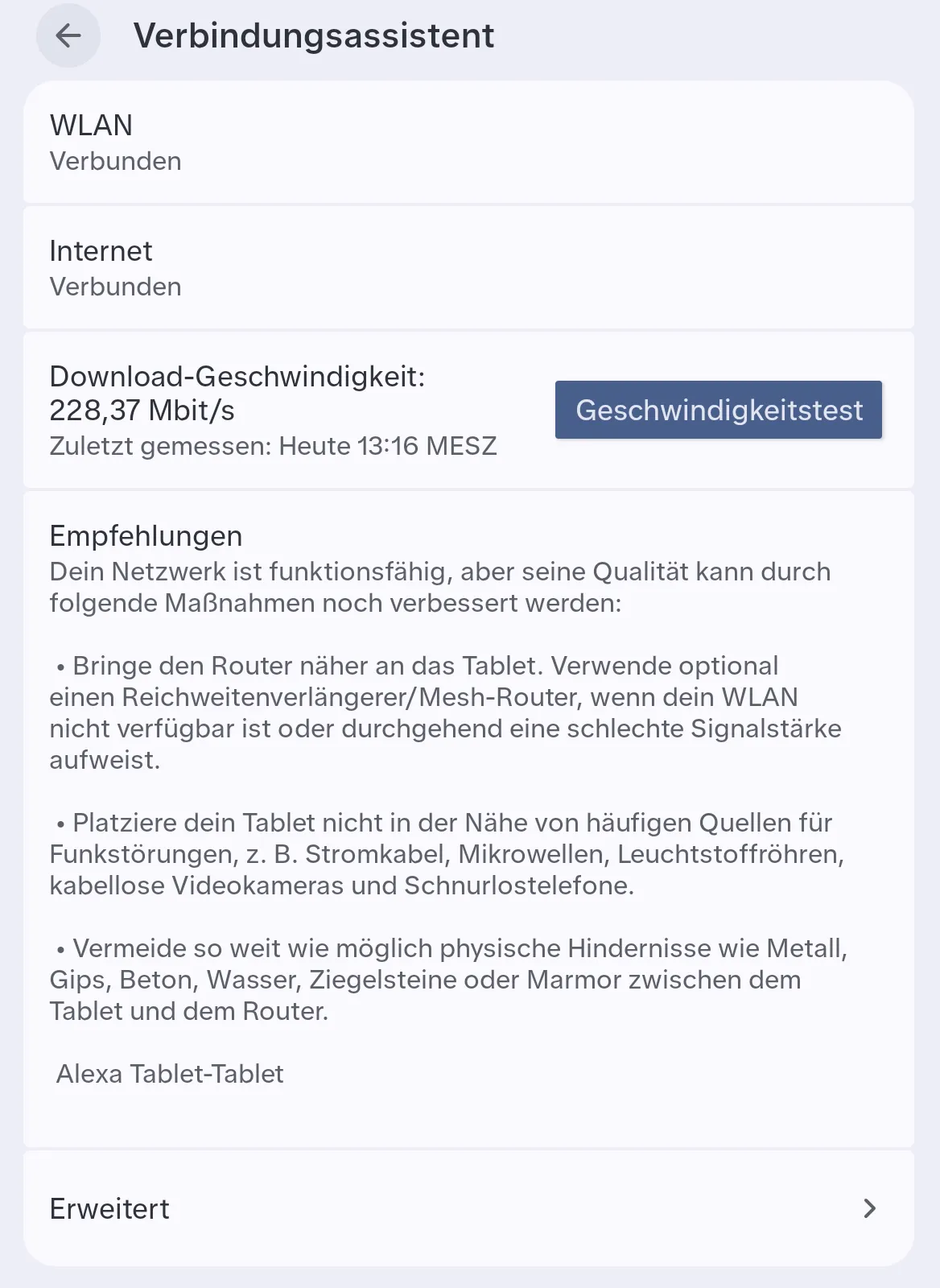
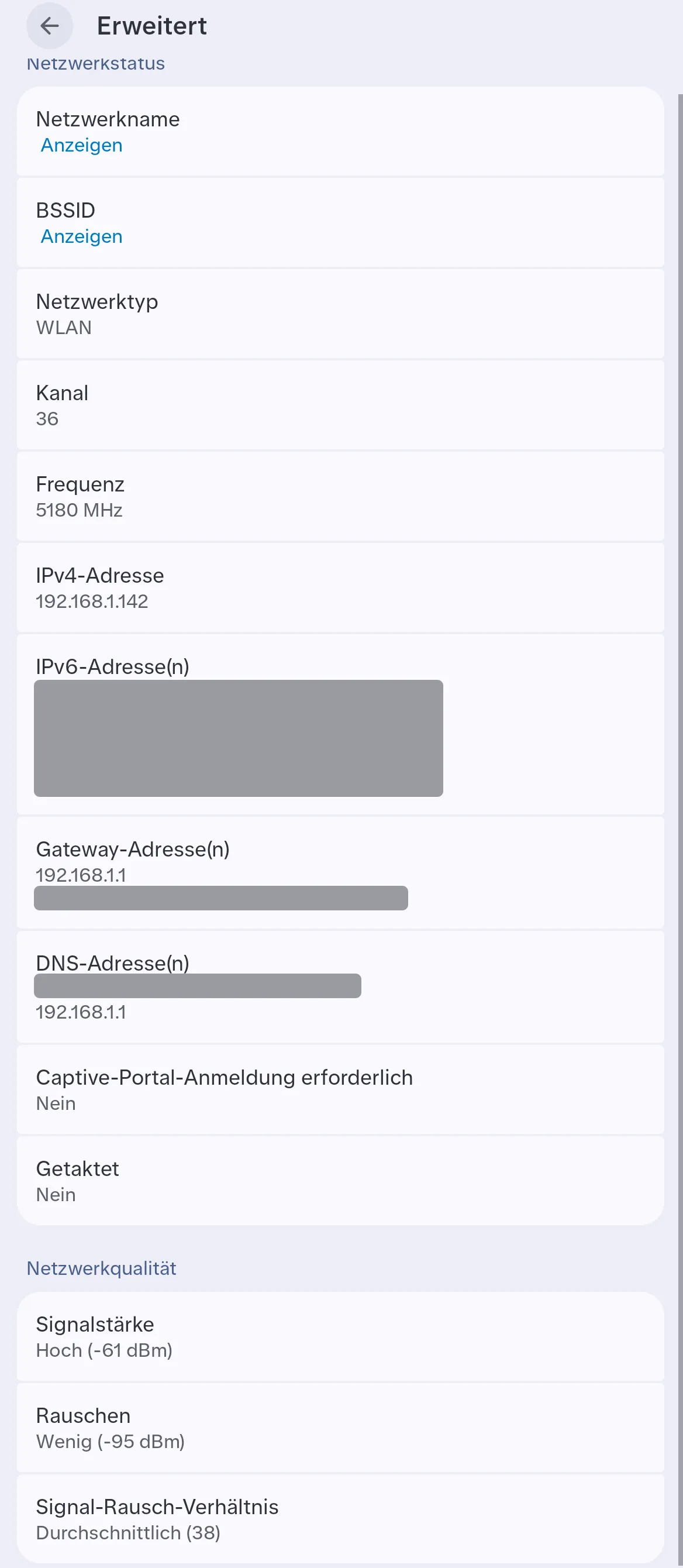
System Status Monitor / “Network Advisor” | … you do not need the Network Advisor page |
com.amazon.adep |
Amazon Security: may disable and uninstall apps that Amazon classifies as harmful or incompatible | … Google Play Protect is enough for you |
The Fire launcher and the home gesture
You cannot usefully remove the Fire launcher, only replace it. After I set Lawnchair as the default launcher and disabled the Fire launcher, the back gesture kept working, but the home gesture did not.
The reason: with gesture navigation, the home gesture is not handled by the default launcher but by the recents
provider hard-wired into the system (Quickstep, TouchInteractionService). Here, that is the Fire launcher. The back
gesture runs through SystemUI and is therefore not affected. The default was not the problem, cmd package resolve-activity with the HOME category correctly returned Lawnchair.
This brings the home gesture back:
adb shell pm enable --user 10 com.amazon.firelauncher
adb reboot
The reboot matters. Without it, the home gesture stayed broken, because SystemUI only reconnects to the launcher after a reboot. Lawnchair remains the default, the Fire launcher only works in the background. With 3-button navigation it would also work without the Fire launcher, but then you lose the recent apps overview. Lawnchair can only take over the recents provider with root.
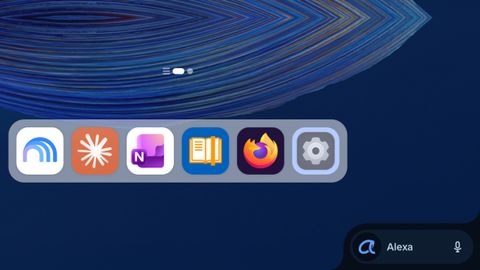
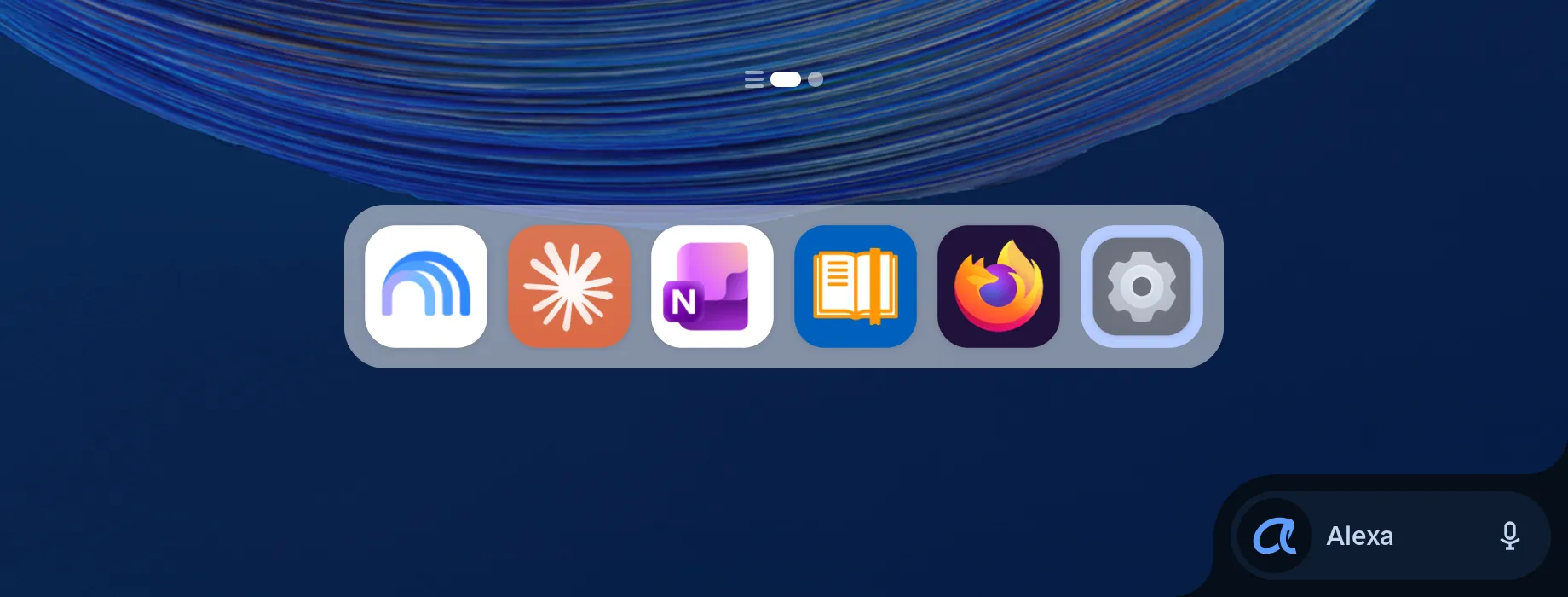
What still appears from the Fire launcher when you swipe up:
- The app dock in the middle is Android’s taskbar for tablets (transient taskbar). There is no switch in the code to turn it off. You can only pin or unpin apps.
- The Alexa icon at the bottom right is called
AlexaIngressButtonin the launcher code. It stayed visible for me, even though the Alexa app was removed, the assistant role was cleared and I had signed out of the account.
Hide the Alexa icon in the taskbar
The Alexa icon disappears when you set the secure setting alexa_app_in_foreground to 1 for user 10:
adb shell settings put --user 10 secure alexa_app_in_foreground 1
adb shell am force-stop com.amazon.firelauncher
Alexa Tablet UI resets the value at every boot.
Honest storage numbers
Removing apps alone frees almost no storage. The 60 removed and disabled packages add up to about 2.66 GB, but the files stay on the device.
| Group | Packages | APK size |
|---|---|---|
| Amazon apps and services | 13 | 1,144.0 MB |
| Google apps | 13 | 653.6 MB |
| Alexa | 4 | 496.1 MB |
| Ads, recommendations and decoration | 6 | 131.1 MB |
| Account-bound Amazon features | 6 | 47.4 MB |
| Demo, setup and support | 7 | 38.2 MB |
| AOSP leftovers | 4 | 11.9 MB |
| Total removed | 53 | 2,522.3 MB |
| Disabled (telemetry and Fire keyboard) | 7 | 135.2 MB |
| Total | 60 | ≈ 2.66 GB |
Why the storage stays occupied:
- System partitions (
/product,/system,/system_ext) are read-only.pm uninstall --useronly hides the app for your user, the APK stays where it is. In my case that is 876 MB. - Updates under
/data/app(1.65 GB) stay as well, because the app is still installed from the system’s point of view. Thebase.apkfiles could still be read withstatafter removal. -kadditionally keeps app data and cache.
The real gain lies elsewhere: fewer processes and background jobs, no ads and no recommendation notifications, less telemetry, a tidy interface and no more updates for apps you do not use.
How to actually free up storage
You free up storage by deleting the updates of the removed system apps. This resets them to the factory version in
/product and cleans up /data. In my case, twelve packages were affected:
for p in com.amazon.dee.app com.amazon.mp3 com.amazon.cloud9 com.amazon.avod com.amazon.kindle com.amazon.clouddrive.photos com.google.android.apps.tachyon com.audible.application.kindle com.amazon.tahoe.grownups com.amazon.tahoe com.amazon.venezia com.amazon.spiderpork; do pm uninstall-system-updates $p; doneAll twelve reported Success. df -h /data went from 16 GB used and 86 GB free to 15 GB used and 87 GB free. Since
df -h rounds to whole gigabytes, that matches the expected 1.65 GB. The apps stay removed for user 10. As a check,
dumpsys package com.amazon.dee.app then shows codePath=/product/priv-app/com.amazon.dee.app, the factory version.
Conclusion
You can thoroughly clean up the Alexa Tablet 12 Pro without root if you keep two things in mind: always use
--user 10 and keep the Fire launcher. Afterwards there are no ads, no recommendations and much less telemetry, and
Google Play is already there anyway. Real storage savings only come from deleting the app updates.
A debloat is no replacement for a custom ROM: what Android without any manufacturer software looks like is shown on the GrapheneOS overview.
Frequently asked questions
Why doesn't pm uninstall --user 0 work on the Alexa Tablet 12 Pro?
The tablet runs in Headless System User Mode. User 0 is an invisible system user without a UI, the actual user is user 10. Commands with --user 0 report Success but change nothing on screen. Check the active user with adb shell am get-current-user.
Can I remove the Fire launcher?
Not in a useful way. The Fire launcher is the system's recents provider. Without it, the home gesture stops working with gesture navigation, even if another launcher such as Lawnchair is the default. Keep it enabled and only set your replacement launcher as the default.
Does debloating free up storage?
Barely. pm uninstall --user only hides apps for the user, the APK files stay on the system partitions and under /data/app. Only pm uninstall-system-updates removes the updates of system apps. In my case that freed about 1.65 GB under /data.
Can everything be undone?
Yes, without a factory reset. Bring removed packages back with cmd package install-existing --user 10 <package> and re-enable disabled ones with pm enable --user 10 <package>. The script for this article has a --restore option for that.