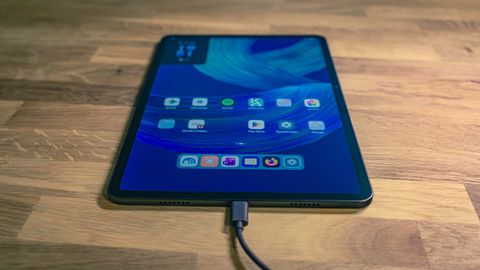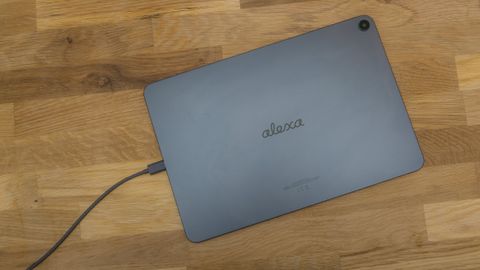
TL;DR
The Alexa icon in the taskbar of the Alexa Tablet 12 Pro disappears once you set the secure setting alexa_app_in_foreground to 1 for user 10 via ADB, no root needed. Alexa Tablet UI resets the value at every boot, so a MacroDroid macro has to set it again about 60 seconds after startup.
- Tested with
- Alexa Tablet UI 16.1.10 (build SL16SHIP2003.1344N)
- Time
- approx. 10 min
- Difficulty
- easy
Tested on
Amazon Alexa Tablet 12 Pro (Wi-Fi, ATSPWI)
What you need
- Computer with adb and USB debugging enabled on the tablet
- MacroDroid from the Play Store, to make it permanent
Contents (6 sections)
You can hide the Alexa icon in the taskbar of the Alexa Tablet 12 Pro without root: set the secure setting
alexa_app_in_foreground to 1 via ADB. Alexa Tablet UI resets the value at every boot, so an automation app has to set it
again. This article shows both steps and explains why the icon stays even after you remove Alexa. As of October 23,
2026, I found no other guide for this. Older tips for Fire tablets only disable or uninstall the Alexa app, which leaves
the icon in place.
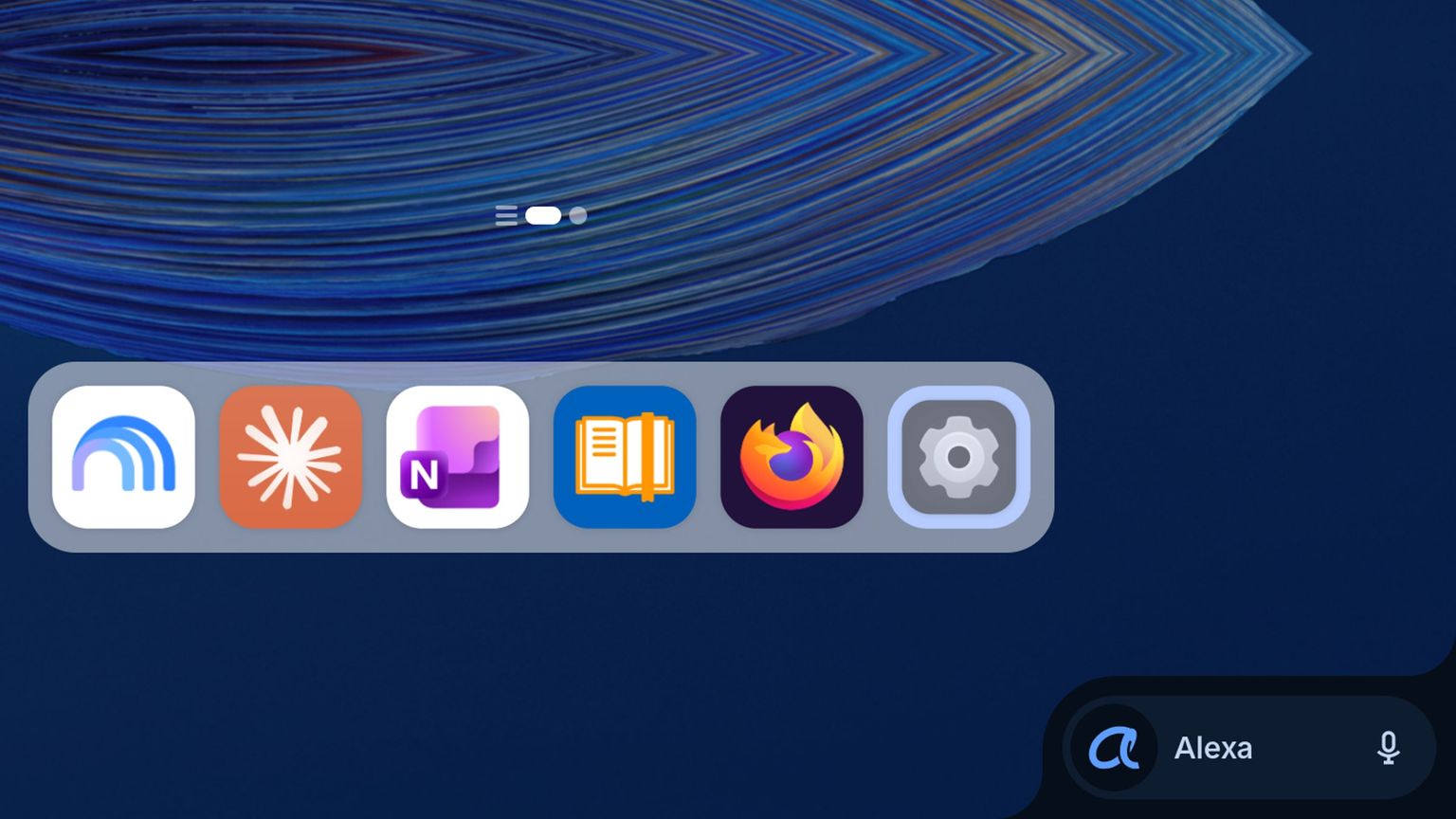
The Alexa icon in the taskbar
The Alexa icon sits at the bottom right of the taskbar, next to the app dock. It appears when you swipe up from the
bottom edge and in the recent apps overview. In the launcher code it is called AlexaIngressButton. On my tablet it
stayed visible even though the Alexa app was removed, the assistant role was cleared and I had signed out of the
account.
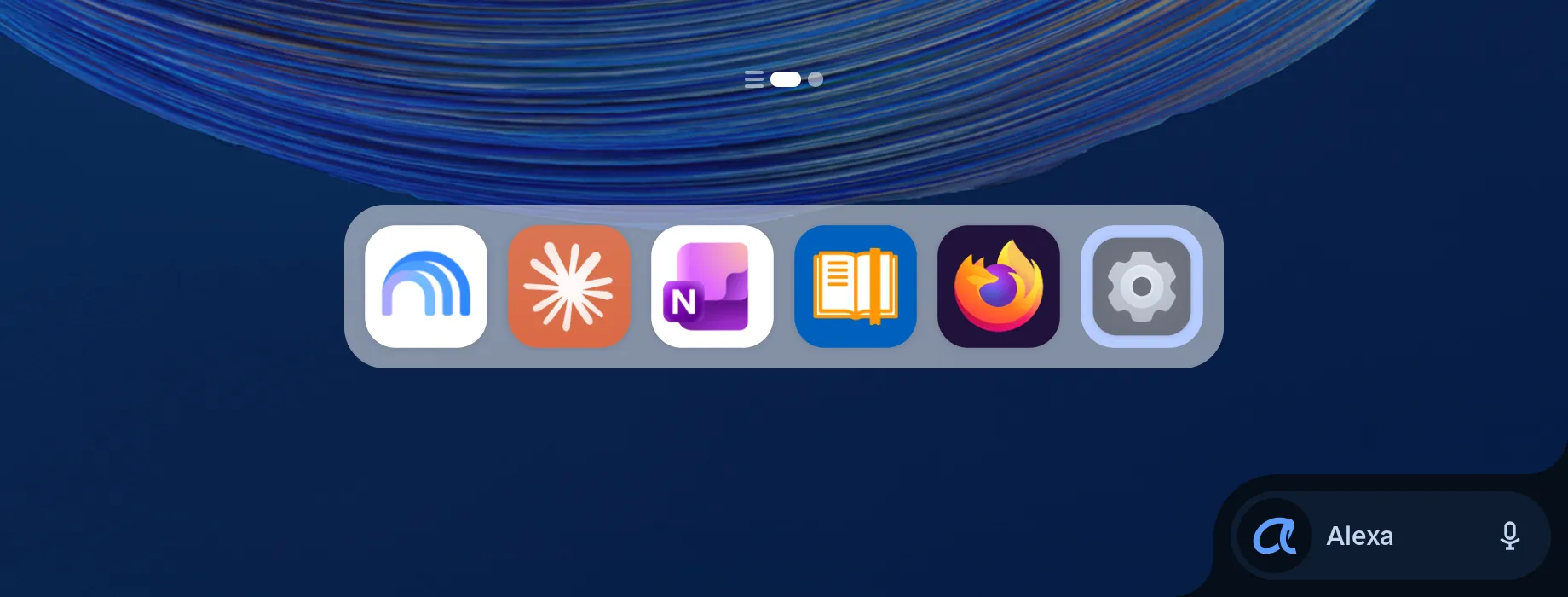
The taskbar itself belongs to the Fire launcher, which you should not remove: without it, the home gesture stops working. Why that is, and what else you can safely remove, is explained in Alexa Tablet 12 Pro debloat.
Why the icon stays after removing Alexa
The launcher shows the icon based on two secure settings, not on whether Alexa is installed. I found this by
decompiling the class TabletAlexaIngressVisibilityController in the Fire launcher (Home UI 1.0.21178.0):
public boolean shouldShowIngress() {
    int windowOpen   = Settings.Secure.getInt(cr, "alexa_window_is_open", 0);
    int inForeground = Settings.Secure.getInt(cr, "alexa_app_in_foreground", 0);
    if (!isChildProfile(ctx) || shouldShowAlexaIngressInChildProfile(ctx)) {
        return windowOpen == 0 && inForeground == 0;   // only then visible
    }
    return false;
}
So the launcher does not check whether Alexa is installed, enabled or signed in. It only hides the icon while Alexa
itself is open. The Alexa app normally sets both values, and once it is removed, nobody sets them anymore. Notably, my
device had alexa_availability=1, which according to TabletAlexaStateHelper.isAlexaDisabled() means “Alexa
disabled”, and alexa_enabled was 0. The icon was shown anyway.
Hide the Alexa icon with ADB
Setting alexa_app_in_foreground to 1 hides the icon. You do not need root for this, the ADB shell is allowed to
write secure settings. You need adb on your computer and USB debugging enabled on the tablet, as described under
Preparation in the debloat guide. The tablet runs in Headless System
User Mode, so every command needs --user 10.
adb shell settings put --user 10 secure alexa_app_in_foreground 1
adb shell am force-stop com.amazon.firelauncher
In the launcher, only this visibility logic and the introduction page read the two values. Setting them therefore has
no other side effects. What did not work was clearing the assistant role
(cmd role clear-role-holders --user 10 android.app.role.ASSISTANT).
The debloat script does the same with the
--alexa option, which also removes the Alexa app.
Make it permanent with MacroDroid
It becomes permanent with an automation app that sets the value again after every boot. For me this works with MacroDroid:
Install MacroDroid
Install MacroDroid from the Play Store.
Grant permission for secure settings
Once via ADB, and with
--user 10. Without it,pm granttargets system user 0 and reportspackage not found.adb shell pm grant --user 10 com.arlosoft.macrodroid android.permission.WRITE_SECURE_SETTINGSCreate the macro
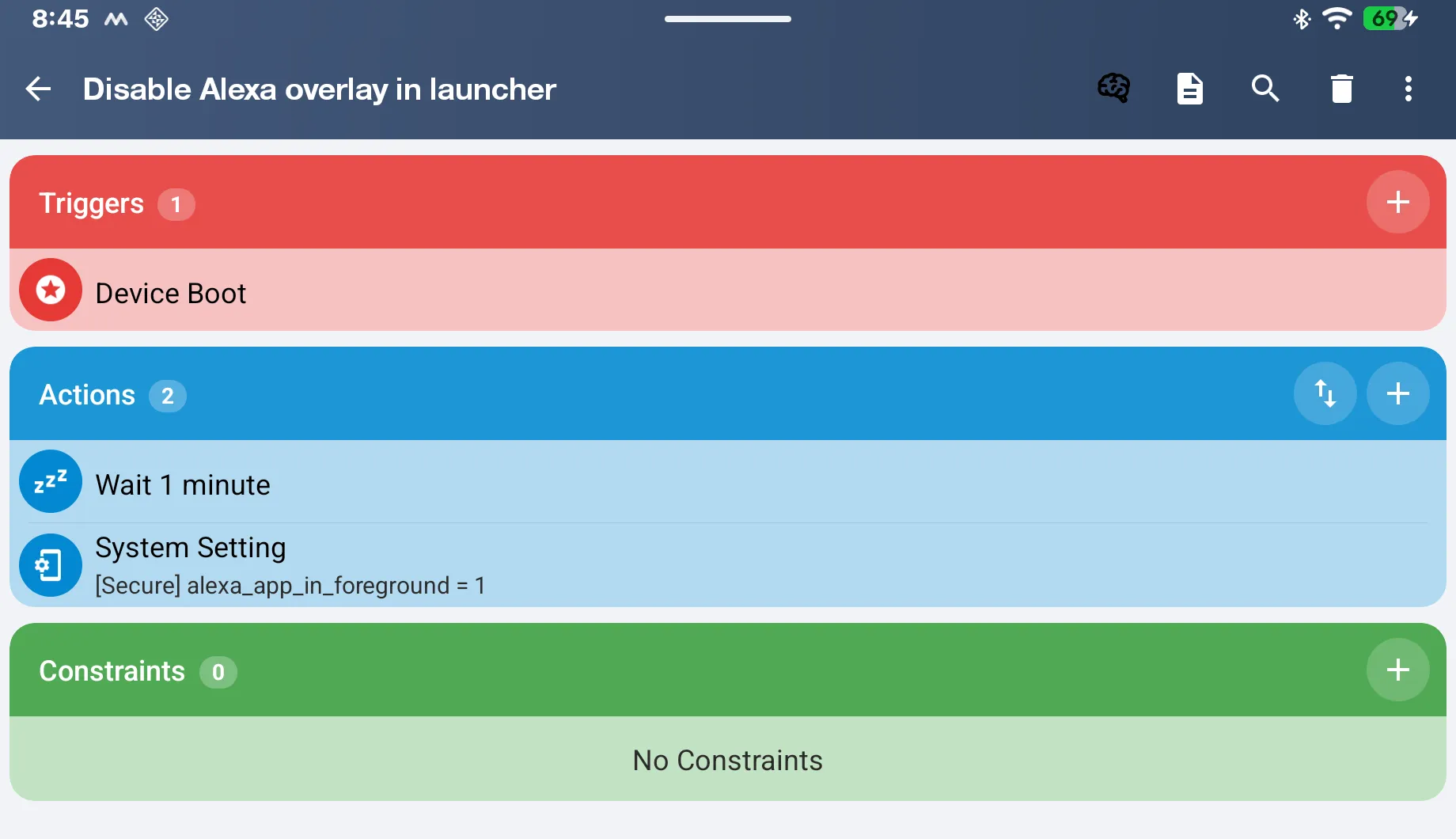
Trigger: Device boot. Action 1: a wait/delay of about 60 seconds. Action 2: System setting › Secure ›
alexa_app_in_foreground=1.
The delay is crucial. Without it, the macro runs at boot before Alexa Tablet UI resets the value. MacroDroid then shows it as
“executed”, but the value is back at 0 afterwards. With the delay, the icon stays gone after a reboot.
Undo
To bring the icon back, delete the setting and disable the MacroDroid macro:
adb shell settings delete --user 10 secure alexa_app_in_foregroundConclusion
Whether the Alexa icon shows up depends on two secure settings, not on Alexa itself. One ADB command hides it, and a MacroDroid macro with a delay keeps it hidden after every reboot, without root and without side effects.
What else you can remove from the tablet is covered in Alexa Tablet 12 Pro debloat. What the tablet can do with Linux, and where Termux and the Android 16 Linux terminal fail, is described in Linux on the Alexa Tablet 12 Pro.
Frequently asked questions
How do I hide the Alexa icon in the taskbar?
With adb shell settings put --user 10 secure alexa_app_in_foreground 1 and a restart of the Fire launcher. Alexa Tablet UI resets the value on every reboot. To make it permanent, use an automation app such as MacroDroid that sets the value again about 60 seconds after boot.
Why is the Alexa icon still visible after removing the Alexa app?
The Fire launcher does not check whether Alexa is installed, enabled or signed in. It only hides the icon while the secure settings alexa_window_is_open or alexa_app_in_foreground are not 0. Normally the Alexa app sets them, and once it is removed, nobody does.
How do I bring the Alexa icon back?
Delete the setting with adb shell settings delete --user 10 secure alexa_app_in_foreground and disable the MacroDroid macro, if you set one up.